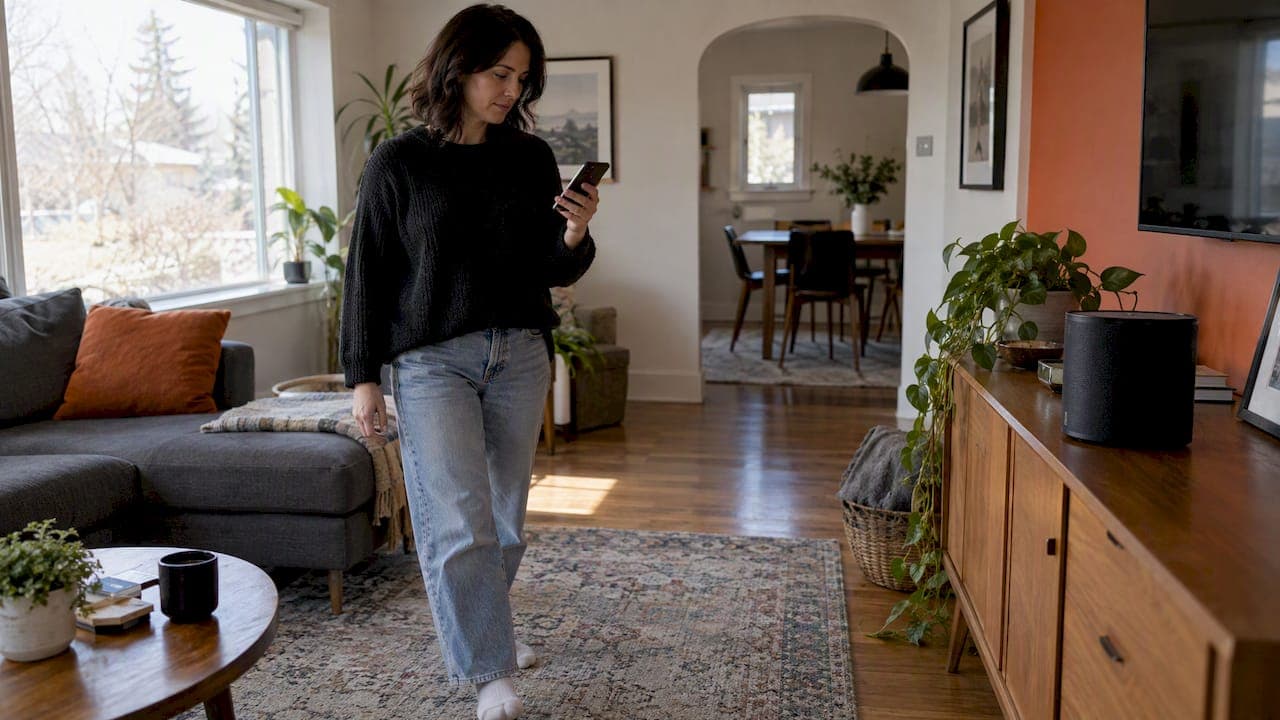
Trueplay is the Sonos feature that tunes a speaker to the room it sits in. You run it from the Sonos app, it takes about three minutes, and it adjusts the sound to suit the walls, furniture and placement around the speaker. You need a supported speaker and, for the full method, an iPhone or iPad. Some newer speakers can also tune from an Android phone.
This guide covers what Trueplay actually does, which devices work with it in Canada, how to prepare the room, the exact steps, when to run it again and what to check when it refuses to finish. We install and service Sonos systems in Calgary, so we also add what we see in real homes, from condo living rooms to acreage great rooms.
TL;DR
- Trueplay measures how sound reflects around a room, then adjusts the speaker for where it sits. Run it once per speaker and again after you move it or change its setup.
- In the app: Settings, pick the speaker, then Sound, Trueplay, Trueplay Tuning. Expect about three minutes.
- Advanced Tuning needs an iPhone or iPad. Quick Tuning uses the speaker's own microphones and works from iOS or Android on a short list of newer speakers.
- Most failures come from background noise, a weak Wi-Fi connection or another app holding the microphone.
- Tuning corrects for the room, but it will not fix a speaker in a bad spot or a room with serious echo.
Table of Contents
- What Trueplay tuning does to your sound
- Which Sonos speakers and phones support Trueplay in Canada
- Advanced Tuning or Quick Tuning
- Prepare the room before you tune
- How to run Trueplay in the Sonos app
- When to run Trueplay again
- What Trueplay will not fix
- Trueplay missing or failing: how to troubleshoot
- Our perspective: tune last, plan first
- Want it done properly in your Calgary home?
- FAQ
- Sources
What Trueplay tuning does to your sound
Every room changes the sound of a speaker. Hard walls bounce it, rugs and curtains soak it up, and a speaker pushed into a shelf or a corner gets extra bass it was never meant to have. Sonos describes Trueplay as a measurement of how sound reflects off walls, furnishings and other surfaces, followed by a fine-tune of the speaker's audio for its placement.
In plain terms, it is a correction applied to the speaker's output so it sounds closer to how it was designed to sound, wherever you put it. A trade publication explaining the feature notes that it is aimed at a familiar problem: people place speakers where they are practical, not where they sound best, and Trueplay works around that position.
Sonos engineers describe Trueplay as a suite of technologies that adapt a speaker's sound to its environment, setup and playback situation. That is why you will see two flavours of it: a manual one that uses a mobile device's microphone, and an automatic one that uses the microphones built into the product while music plays.
Two practical points follow from this:
- Trueplay sits underneath your own preferences. If you later change bass or treble in the app, those EQ settings are applied on top of the Trueplay adjustments.
- The size of the change varies. In a room where the speaker is already well placed, the shift can be subtle. In a room where it is tucked into a bookcase or sits beside a large glass wall, it is easier to hear. Sonos itself says that whether the adjustment is big or small, the aim is the same: a faithful sound.
If you have read forum threads arguing about whether it is "just an EQ curve", that is a fair simplification of the outcome, but the measurement step is what makes the curve specific to your room instead of a generic preset.
Which Sonos speakers and phones support Trueplay in Canada
Sonos's Canadian support page states that all Sonos products except the Port, Connect and Roam SL support Trueplay. The Port and Connect are components that send audio to other equipment, so there is no speaker in them to tune. For the phone, the rule is that Trueplay is available on fully supported iOS and iPadOS devices, apart from those Sonos lists as unsupported.
Here is how the pieces fit together:
| Method | Device you use | Which speakers | How it measures |
|---|---|---|---|
| Advanced Tuning | iPhone or iPad | Supported Sonos products | The device's microphone, as you walk the room |
| Quick Tuning | iPhone, iPad or Android | Arc Ultra, Beam Ultra, Era 100, Era 100 Pro, Era 300 | The speaker's built-in microphones |
| Automatic Trueplay | None needed | Move, Move 2, Play, Roam, Roam 2 (not Roam SL) | Built-in microphones, adjusting as the speaker moves |
The first two rows come from the main Trueplay support page. The third comes from Sonos's compatibility page, which also notes that Trueplay for architectural speakers powered by an Amp needs the most recent Sonos app and does not work while you are using an S1 controller.
Why Android was left out for years
Trueplay began as an iOS feature because microphone quality varies widely across Android phones, which made consistent measurements hard. That history is why older speakers still need an iPhone or iPad. Newer speakers with their own microphones sidestep the problem, which is why Quick Tuning can run from Android.
No iPhone at home?
You do not need to own one. Sonos points out that you can borrow a supported device, and because Trueplay only needs to be completed once per product while it stays in the same location, a friend's iPhone for five minutes is enough.
Advanced Tuning or Quick Tuning
Advanced Tuning is the one most people picture: you hold your iPhone or iPad and move it around the room while the speaker plays a series of sounds. Sonos lists it as available on iOS. Because you sample many points in the room, it captures where you actually sit and move.
Quick Tuning needs no walking. The speaker uses its own microphones, and it is available from iOS or Android on the Arc Ultra, Beam Ultra, Era 100, Era 100 Pro and Era 300. If you own one of those and want a result in under a minute of effort, it is a sensible default.
Our practical advice:
- Soundbar under a TV, and you sit in one or two spots: Quick Tuning is fine for a first pass. If the dialogue or bass still feels off, run Advanced Tuning from an iPhone and compare.
- Open-concept room where you listen from the kitchen, the sofa and the dining table: Advanced Tuning gives you a chance to cover that whole area.
- Android-only household with an older speaker: borrow an iPhone once, as above.
If your soundbar is the centre of your TV setup, our guide on fixing TV audio with Sonos goes through placement and settings that matter before you tune.
Prepare the room before you tune
Tuning is a measurement, and measurements are only as good as the conditions. Sonos asks you to keep noise to a minimum, including talking, footsteps and loud appliances, and to cover as much of the room as you can.
A checklist that works in a typical Calgary home:
- Put the speaker in its final spot first. Trueplay is tied to location. If you plan to move the shelf or the TV unit next week, wait.
- Settle the room. Close windows if the street is busy, and switch off the furnace fan or range hood if you can do so comfortably. A dishwasher running in an open-plan home will show up in the measurement.
- Tell the household. Ask everyone to stay quiet for about three minutes. Children and dogs count.
- Set the volume once and leave it. Sonos advises you to avoid changing the volume during the process.
- Close other apps. Anything using the phone's microphone, such as a call or a recording app, can interrupt tuning.
- Take off a heavy case or cover if it might muffle the phone's microphone. This is our habit rather than an official step, but it costs nothing.
Furniture matters less than you might think, but position matters more. A speaker boxed into a cabinet or jammed against a wall will sound different from one on open shelving, and tuning can only do so much. For ceiling and overhead speakers, the placement itself is the bigger lever, which we cover in our pieces on ceiling speaker placement and Atmos speaker placement.
How to run Trueplay in the Sonos app
The route in the app, per Sonos's Canadian instructions, is:
- Open the Sonos app and go to Settings.
- Select the speaker or room you want to tune.
- Choose Sound, then Trueplay, then Trueplay Tuning.
- If the app asks you to pick a method, choose Advanced Tuning or Quick Tuning, then follow the prompts.
If you chose Advanced Tuning, the app plays a series of tones and asks you to move the iPhone or iPad around the room. Sonos says the whole process takes roughly three minutes. The advice for the walking part is to move the device smoothly and cover as much of the room as possible.
A few habits that help:
- Hold the phone at roughly chest height and move it slowly, in the places where people actually sit and stand.
- Do not wave the phone fast or point the microphone at your body.
- Stay out of the speaker's direct path as much as you can.
When it finishes, you can switch Trueplay on and off in the same menu and listen to the difference on a track you know well. Pick something with clear vocals and a steady bass line, and switch back and forth a few times. If you prefer the untuned sound, that is a legitimate choice; the room is yours.
Tuning stereo pairs, surrounds and soundbars
If you have a pair, or a soundbar with surrounds and a sub, tune each room after you have finished arranging the group. Sonos says you should run Trueplay again if you create or separate a stereo pair, because the configuration changes the sound. For a full home theatre layout, start with the speakers physically in place, then tune. Our Sonos home theatre setup guide walks through that order.
When to run Trueplay again
Trueplay stays valid as long as the speaker stays put. Sonos says to run it again if you move the speaker to a new location or change its configuration. In practice, we suggest retuning when:
- You move the speaker to another shelf, wall or room.
- You pair it, unpair it, or add it to a surround setup.
- You rearrange the room in a big way: new sectional, large rug, new wall unit.
- You renovate. A new floor, new drapes or finished drywall change reflections.
Sonos adds that tuning is only needed once per product while it stays in the same location. If you only swap a lamp or hang a picture, leave it alone.
Portable speakers are different. The Move, Move 2, Roam and Roam 2 support automatic Trueplay, so they adjust using their own microphones as they change location, with no walk-around required.
What Trueplay will not fix
Tuning is a correction, not a rebuild. We see three situations where people expect more than it can give:
- A very echoey room. Bare drywall, tall ceilings and tile can make speech hard to follow. Treating the room with soft finishes or acoustic panels does more than any EQ.
- A speaker in the wrong place. If a soundbar sits inside a closed cabinet, the sound is trapped. Move it before you tune.
- Noise from outside the room. If a home theatre bleeds into the bedrooms, that is a construction question. See our realistic plan for soundproofing a home theatre.
Think of Trueplay as the last 10 percent of polish on a sensible installation, and a quick way to rescue a speaker that cannot go where you would like.
Trueplay missing or failing: how to troubleshoot
If the option does not appear, start with compatibility. Confirm that the speaker is not a Port, Connect or Roam SL, and that your phone or tablet is a supported iOS or iPadOS device. If you are on Android, check that your speaker is one of the five that supports Quick Tuning. If you have an architectural speaker on an Amp, update the Sonos app, because it is not supported on an S1 controller.
If tuning starts but will not finish, Sonos says the usual causes are connectivity issues, background noise or other apps using the microphone. Work through this order:
- Check the network. The phone and the speaker must be on the same working network. If the signal is patchy, a guide to fixing common Wi-Fi connection issues can help you rule out the router first.
- Restart anything that has connection trouble. Sonos recommends rebooting products that are struggling to stay connected.
- Cut the noise. For a speaker problem or noise error, shut off noisy appliances and wait for the room to quiet down.
- Close apps using the microphone. Video calls, voice memos and some games can hold it.
- Retry. Run the tuning again from Settings, Sound, Trueplay.
If the speaker keeps dropping off the network altogether, that is a different problem. Our guide to Sonos not connecting in Alberta covers it, and our piece on AirPlay 2 multiroom dropouts helps if you stream from Apple devices.
In larger homes, repeated tuning errors often point to the network, not the speaker: a single router at one end of a two-storey house, or mesh nodes placed too far apart. That is a wiring and layout question, and one reason we plan network and low-voltage cabling alongside audio.
Our perspective: tune last, plan first
We install Sonos in Calgary homes, from condos to acreage builds, and Trueplay is a tool we like to use. We also think it is often asked to do work that belongs earlier in the project.
Our approach is to design systems around the room instead of correcting them afterward. That means deciding where speakers go before drywall, running the right low-voltage cabling, choosing products scaled to the space, and making installs discreet enough to disappear into the architecture. When that groundwork is done, tuning is the finishing step: a few minutes that confirm the system sounds the way it was designed to.

When we see a Sonos system that sounds wrong, tuning is rarely the first fix. We look at placement, network stability, how the TV audio is routed and whether the room itself is working against the speakers. Then we tune, and we show the owner how to rerun it if the furniture changes.
For builders, the lesson is simple: the cheapest time to get audio right is before the walls are closed. Our audio rough-in checklist lays out what to settle early.
— JupiterAV
Want it done properly in your Calgary home?
If you would rather not spend an evening with a phone and a stopwatch, we can help. JupiterAV sells, installs and services Sonos and WiiM audio, whole-home audio and video, custom home theatres and the networking and low-voltage wiring that keeps them stable, for homeowners, businesses and home builders around Calgary. You get one point of contact from design to ongoing support. See what we offer at JupiterAV, and tell us about the room.
FAQ
Is Sonos Trueplay worth doing?
For most rooms, yes, because it takes about three minutes and costs nothing. It matters most when a speaker sits near walls, in a shelf or in a room with a lot of hard surfaces. You can switch it on and off in the app and keep whichever sounds better to you.
Can I use Trueplay with an Android phone?
Advanced Tuning is for iOS only. On Android you can use Quick Tuning, but only with the Arc Ultra, Beam Ultra, Era 100, Era 100 Pro and Era 300. For other speakers, borrow an iPhone or iPad once, since tuning is only needed once per speaker in the same location.
Why did Trueplay stop working or disappear from my app?
First check that your speaker and phone are supported, and that the Sonos app is up to date. If the option is there but tuning fails, look at your Wi-Fi, background noise and other apps using the microphone. Reboot any product that is having connection trouble and try again.
Do I need to retune after moving the speaker?
Yes. Run Trueplay again if you move a speaker to a new spot or change its setup, for example by creating or separating a stereo pair. If nothing has changed in the room, there is no need to repeat it.
Does Trueplay replace the EQ in the Sonos app?
No. They work together. Your bass and treble settings are applied on top of the Trueplay adjustments, so you can still tailor the sound to your taste after tuning.
Sources
- Tune your Sonos speakers with Trueplay, Sonos Support Canada
- Trueplay-compatible devices and Sonos products, Sonos Support
- Error during Trueplay tuning, Sonos Support Canada
- Trueplay Spectral Correction, Sonos Tech Blog
- Sonos Trueplay brings simple speaker tuning to millions of rooms, Sonos Newsroom
- What is Sonos Trueplay? The audio calibration tech explained, Trusted Reviews