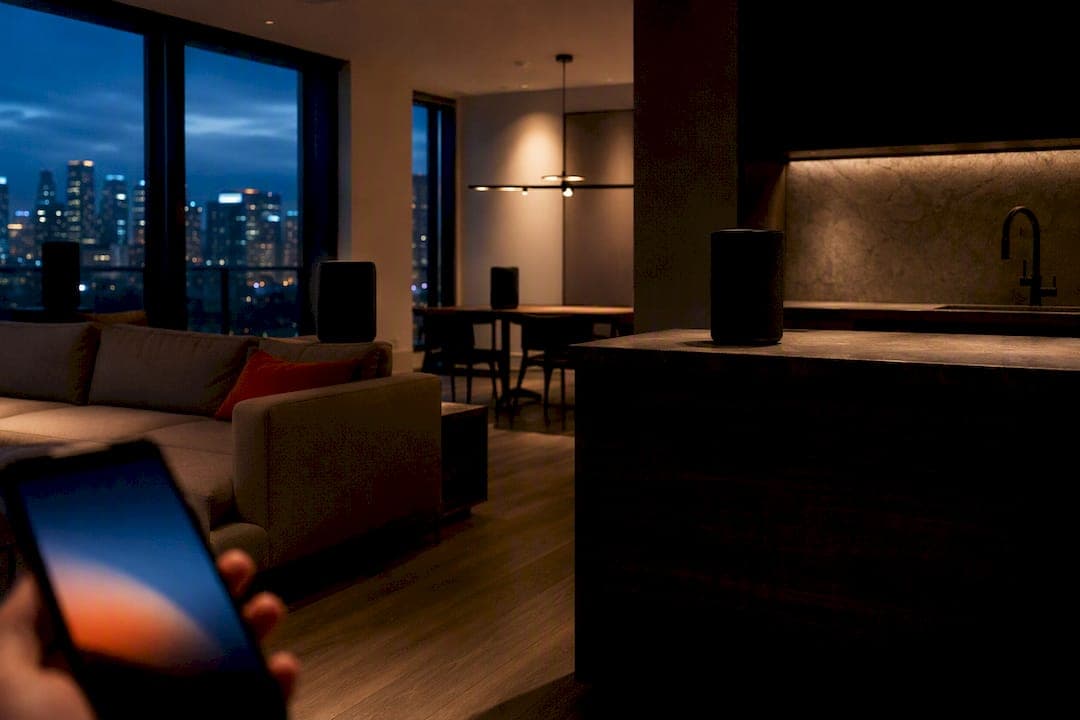
Yes, AirPlay 2 multiroom playback works: it streams the same audio in sync to multiple AirPlay 2 devices from one Apple source. You need an iPhone, iPad, or Mac as the source device, at least two AirPlay 2 targets such as a HomePod or an AirPlay 2-compatible speaker, and a stable Wi-Fi network holding everything on one local network. The one catch worth knowing upfront: most third-party AirPlay 2 speakers depend on that source device staying nearby and connected, while HomePod can behave a little differently.
TL;DR:
- Most third-party AirPlay 2 speakers rely on the source device remaining nearby and connected, which can cause dropouts if the device goes out of Wi-Fi range or is turned off.
- Ensuring all devices run current firmware, are on the 5 GHz Wi-Fi band, and have clear, distinct room names helps prevent setup issues and improves multiroom stability.
- Setting up multiroom playback involves selecting and controlling multiple devices through the Control Center on iPhone or iPad, with stereo pairing managed separately in the Home app.
- AirPlay 2 keeps speakers synchronized via buffering and clock sharing, but its dependence on the source device makes it less reliable if the device drops connection during playback.
- For more reliable, zone-independent whole-home audio, professional installation and wired systems are recommended over relying solely on AirPlay 2 for consistent multiroom experiences.
Table of Contents
- What you need before setting up AirPlay 2 multiroom
- How do you set up multiroom playback on an iPhone?
- How does AirPlay 2 multiroom actually stay in sync?
- Is AirPlay 2 enough, or do you need a whole-home platform?
- Fixing dropouts, sync issues, and speakers that won't show up
- When AirPlay 2 setup calls for a professional installer
- What most AirPlay 2 advice gets backwards
- Get a whole-home audio system designed around how you actually listen
- Where to verify the technical details
- Sources
- FAQ
What you need before setting up AirPlay 2 multiroom
Before you touch Control Center, confirm four things. Skipping this step is the most common reason multiroom setups feel flaky on day one.
Source device and software. AirPlay 2 needs iOS 11.4 or later on an iPhone or iPad, macOS Mojave or later on a Mac, or tvOS 11.4 or later on Apple TV. Apple rolled multiroom support and stereo pairing into iOS 11.4, so anything older simply won't show the multi-speaker picker in Control Center.
AirPlay 2 targets. This means HomePod or HomePod mini, Apple TV (as an audio output, not just a video box), and any AirPlay 2 speakers or AV receivers from other brands. Not every wireless speaker with "AirPlay" printed on the box supports AirPlay 2. Crutchfield's device compatibility notes are a fast way to check a specific model before you buy.
Network basics. All your devices need to sit on the same local network. A 5 GHz Wi-Fi band handles streaming audio more reliably than 2.4 GHz, and your router should support multicast and IGMP snooping, since AirPlay 2 discovery leans on multicast traffic to find devices. Firmware matters too: some brands only gained AirPlay 2 through a firmware update, the way Russound added it to its MBX-Series products.
Accounts and room names. Sign into the same Apple ID and Wi-Fi network for every device, and give rooms clear, distinct names in the Home app (Kitchen, not "Speaker 2"). Vague names cause more support tickets than any hardware issue.
- Update iOS, iPadOS, macOS, or tvOS to the current version before setup
- Confirm every target speaker or receiver actually lists AirPlay 2 support, not just AirPlay
- Put streaming devices on 5 GHz Wi-Fi, and check your router allows multicast traffic
- Check for firmware updates on third-party speakers and AV receivers
- Assign clear, unique room names in the Home app before adding speakers to groups
How do you set up multiroom playback on an iPhone?
Once devices are updated and named, the actual setup takes about two minutes.
- Start playback of any song, podcast, or radio station on your iPhone or iPad.
- Open Control Center and long-press (or firmly press) the audio card in the top right.
- Tap the AirPlay icon in the corner of that expanded card. This opens a list of every AirPlay 2 device on your network.
- Select multiple speakers by tapping each one. A checkmark appears next to every device that's now playing in sync.
- Adjust volume per room using the individual sliders that appear under each selected speaker. Muting one room doesn't stop playback elsewhere.
Stereo pairing works differently and lives in the Home app, not Control Center. Open Home, tap your HomePod or HomePod mini, tap the gear icon, then Create Stereo Pair and choose the second unit. Once paired, the two speakers behave as a single AirPlay target: they show up as one entry in Control Center, and you can't select them individually anymore for multiroom. How-To Geek's walkthrough of AirPlay 2's multi-room features covers this same flow with screenshots if you want a visual reference.
Apple TV shows up in that same AirPlay picker as a selectable speaker output, which is handy for routing music through your home theatre without switching inputs. If it's missing from the list, check for a pending tvOS update under Settings > System > Software Update on the Apple TV itself, since older tvOS builds don't expose the audio-only AirPlay option.
Siri adds a shortcut layer on top of all this. "Hey Siri, play jazz in the kitchen and living room" starts multiroom playback directly, and "move this to the bedroom" hands off a currently-playing track to a different room without touching your phone.
How does AirPlay 2 multiroom actually stay in sync?
AirPlay 2 keeps speakers aligned through buffering and clock synchronization built into the protocol. Each device buffers a small amount of audio and times its playback against a shared clock reference, which is why you don't hear the kitchen speaker lag half a second behind the living room. Apple built this specifically to fix the drift problems that plagued the original AirPlay, and the improvement shipped alongside multiroom and stereo pairing support in iOS 11.4.
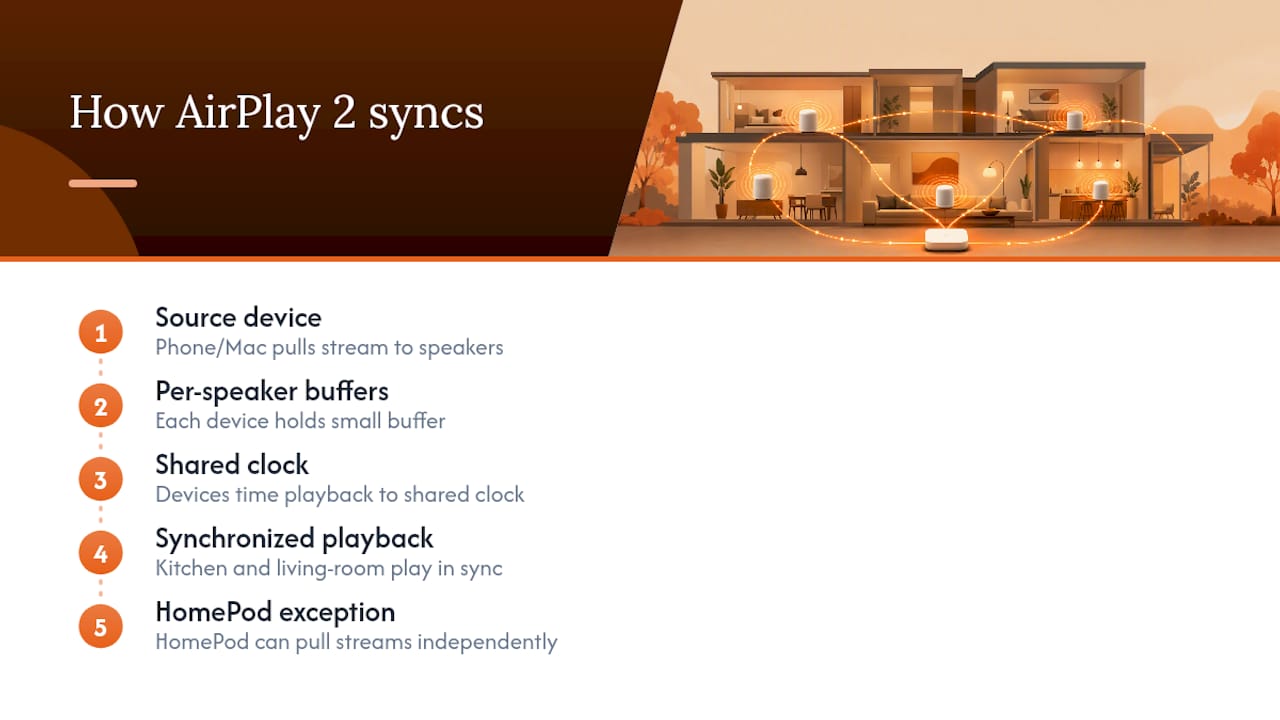
The part people don't expect: most third-party AirPlay 2 speakers rely on your phone or Mac as the streaming source, not just the trigger. Your device pulls the audio from Apple Music or Spotify and pushes it out to each speaker individually. Walk out of Wi-Fi range, let your phone's battery die, or force-quit the music app, and multiroom playback can stop across every room, not just the one nearest you.
HomePod is the exception. Because it runs an iOS-class chip with its own network stack, HomePod can pull certain Apple Music streams more independently in some configurations, which changes how it fails. The Verge's coverage of AirPlay 2's launch points out this phone-centred model as the practical trade-off buyers should understand before assuming any AirPlay 2 speaker behaves identically to HomePod.
On audio quality, AirPlay 2 handles lossless, CD-quality streaming at 16-bit/44.1kHz without trouble. It's not built for the higher-resolution hi-res formats some competing wireless protocols target, so audiophiles chasing 24-bit hi-res files elsewhere in their library should know that ceiling exists, as How-To Geek's comparison of AirPlay against other casting protocols lays out in more detail.
Is AirPlay 2 enough, or do you need a whole-home platform?
AirPlay 2 fits Apple-centric households running casual, ad-hoc multiroom listening. It fits less well the moment you want wall-mounted keypads, independent zones that don't rely on anyone's phone, or server-based streaming that keeps playing whether or not someone's iPhone is on the network.
Installer-grade platforms address exactly those gaps. Control4 systems, for instance, can show AirPlay 2 as a selectable input from an iPhone, but the platform still runs its own native browsing and zone control underneath, so playback doesn't collapse if a phone walks out the door. Control4's own documentation on AirPlay 2 integration frames it as a convenience layer added on top of, not a replacement for, native zone autonomy.
A mixed setup is common and works well: keep AirPlay 2 for casual streaming to a HomePod in the office, and let a centralized whole-home audio system handle the zones that need reliable, phone-independent playback.
Ask yourself these four questions before deciding:
- Do you need speakers to keep playing without anyone's phone connected?
- How many zones are you actually running, two rooms or twelve?
- Do you want wall keypads and automation triggers, not just phone control?
- What's the budget gap between adding AirPlay 2 speakers versus a designed system?
Fixing dropouts, sync issues, and speakers that won't show up
Most multiroom problems trace back to the network, not the speakers. Work through this order before assuming a device is defective.
- Isolate the problem speaker. Play audio to just one device at a time. If one specific speaker consistently drops out while others don't, the issue is that unit or its Wi-Fi signal, not your whole network.
- Check Home app room names and groupings. Duplicate or renamed rooms confuse the AirPlay picker and can cause a speaker to vanish from the list entirely.
- Inspect your Wi-Fi setup. Look for multiple SSIDs (a 2.4 GHz and 5 GHz network with different names) that split devices across bands, and check whether AP steering on a mesh system is bouncing a speaker between access points mid-song.
- Update firmware on everything. Router, mesh nodes, AV receivers, and third-party speakers all need current firmware. A version mismatch between a speaker's firmware and iOS is a frequent, invisible cause of stutter.
- Reboot in order: modem first, then router or mesh base, then the speakers, then your phone. Rebooting devices out of order often just recreates the same broken connection.
The most common failure patterns are a firmware mismatch on a third-party speaker, a mesh network's access point steering a moving device mid-stream, and a congested 2.4 GHz band overloaded with other smart home traffic. Moving audio devices to 5 GHz and confirming your router handles multicast properly, as How-To Geek notes in its multiroom setup guide, resolves a large share of dropout complaints on its own.
Pro Tip: If you're troubleshooting a stubborn multiroom setup in a house with a mesh network, temporarily connect everything to a single access point on its own SSID. If sync problems disappear, the mesh's AP steering was the culprit, not the speakers or the AirPlay protocol itself.
When AirPlay 2 setup calls for a professional installer
Some scenarios go past what a Control Center tap can fix. In-ceiling or in-wall speakers with hidden wiring, whole-home audio spanning eight or more zones, and integration with Control4 or another automation platform all benefit from someone who's done the wiring and network design before.
A proper installer engagement covers more than mounting hardware:
- Network design that separates streaming traffic from congested household Wi-Fi
- Device provisioning and firmware updates across every speaker and receiver before handoff
- Room-by-room calibration so volume and tone match across different speaker models
- A warranty period and ongoing support if something breaks six months later
Before hiring anyone, ask what's in scope, whether they test multiroom sync across every room before leaving, and what happens if a speaker fails after installation.
Control4 rooms can appear as selectable AirPlay 2 targets from an iPhone, but that integration sits on top of native browsing and zone control that keeps working independently of any phone. Installers typically configure AirPlay 2 as a convenience layer while retaining Control4's own streaming for consistent whole-home behaviour.
JupiterAV designs and installs exactly these kinds of systems, including Control4 automation integration and in-ceiling speaker layouts built to avoid the retrofit headaches that come from poor initial placement.
What most AirPlay 2 advice gets backwards
Most setup guides treat AirPlay 2 dropouts as a mystery to be solved speaker by speaker. That's backwards. The research is consistent: the phone-centred streaming model is the actual design, not a bug, and once you understand that most third-party speakers need your source device connected and nearby, half the "random" dropouts stop being random.
Where conventional advice really falls short is treating AirPlay 2 and a designed whole-home system as competitors. They're not solving the same problem. AirPlay 2 is a convenience layer for casual listening; a wired, zoned system is infrastructure. Comparing their reliability head-to-head misses that one is meant to be temporary and phone-dependent by design, and the other isn't.
If you're setting this up today, prioritize the network before the speakers. A 5 GHz band, current firmware, and one access point instead of an aggressive mesh will fix more multiroom complaints than any speaker swap. Once that foundation holds, decide honestly whether your household wants casual AirPlay 2 streaming or the independence that only a properly wired system delivers.
— JupiterAV
Get a whole-home audio system designed around how you actually listen
AirPlay 2 handles casual multiroom streaming well, but it stops short the moment you want speakers that don't depend on someone's phone, wiring that disappears into your ceiling, or a system that just works the same way every time. That's the gap JupiterAV fills: we sell, install, and support whole-home audio and smart home systems designed around your space instead of retrofitted around whatever speaker you bought last month.

An initial consultation with JupiterAV starts with a site visit or a conversation about your space, your existing devices, and where reliable, zone-independent audio actually matters to you versus where AirPlay 2 already does the job fine. From there you get a straightforward quote covering equipment, wiring, and setup, whether that's a few in-ceiling zones or a full Smart, Effortless Living integration with Control4 and Lutron lighting alongside your audio. If you're weighing whether to keep patching AirPlay 2 dropouts or install something built to not need patching, request a quote from JupiterAV and get a straight answer on what your space actually needs.
Where to verify the technical details
These are the primary sources behind the setup steps and technical claims in this guide, useful if you want to check firmware notes or official requirements yourself.
- Apple's iOS 11.4 Newsroom announcement on AirPlay 2's multiroom and stereo pairing launch
- The Verge's reporting on the phone-centred streaming model and HomePod's exception
- Russound's firmware announcement showing how vendors add AirPlay 2 to existing hardware
- Control4's integration documentation on how installer platforms handle AirPlay 2
Sources
- iOS 11.4 brings stereo pairs and multi-room audio with AirPlay 2
- Apple’s AirPlay 2 with multiroom audio streaming and stereo HomePod pairing is here
- Introduction to AirPlay 2 and Control4 Ryff
- AirPlay 2 now available for MBX-Series products
FAQ
Is there a difference between AirPlay and AirPlay 2?
Yes. Original AirPlay only streams to one speaker at a time, while AirPlay 2 added true multiroom support, stereo pairing, and improved buffering and clock sync to keep multiple speakers aligned. If your speaker only lists "AirPlay" without the "2," it can't join a synced multiroom group.
Can you AirPlay to two devices at once?
Yes, that's the core feature of AirPlay 2. Long-press the audio card in Control Center, tap the AirPlay icon, and select multiple speakers to stream the same audio in sync to all of them, with independent volume control for each room.
Which speakers support AirPlay 2?
HomePod and HomePod mini support it natively, along with many AirPlay 2-compatible speakers and AV receivers from other brands, some added through firmware updates like Russound's MBX-Series rollout. Check a specific model's spec sheet for "AirPlay 2," not just "AirPlay," since the two aren't interchangeable.
What is the range of AirPlay 2?
AirPlay 2 doesn't have a fixed range figure since it runs over your Wi-Fi network rather than a direct wireless connection. Practical range depends on your router or mesh coverage. If a speaker sits at the edge of your Wi-Fi signal, it will drop out of multiroom groups well before any theoretical protocol limit.
Does JupiterAV install AirPlay 2 compatible systems?
Yes. JupiterAV designs and installs whole-home audio and smart home systems, including setups that mix AirPlay 2 convenience with wired, zoned infrastructure for households that need more reliability than phone-dependent streaming provides. Reach out through the JupiterAV site for a site survey or quote.