Quick fixes when your Sonos won't connect
Most Sonos connection issues come down to three things: power, network, and interference. Start here before digging into router settings.
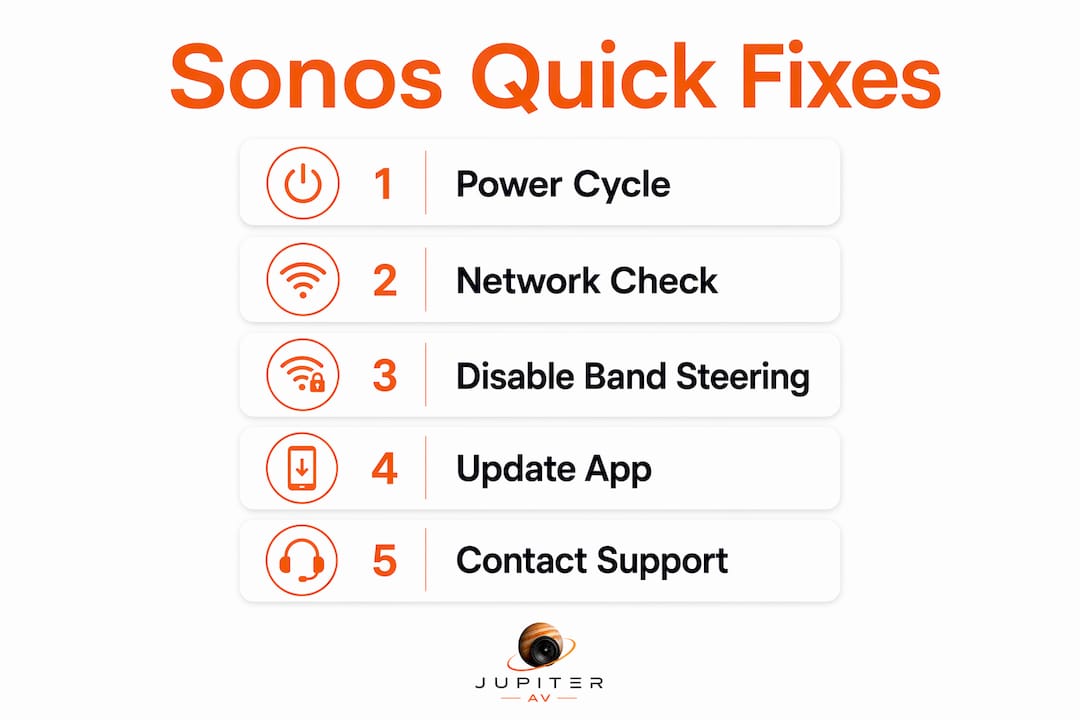
- Power cycle everything. Unplug your Sonos speakers and your router for 10 seconds, then plug the router back in first. Wait for it to fully restart before powering on your speakers.
- Check your WiFi network. Your phone, tablet, and Sonos speakers must all be on the same primary WiFi network. Guest networks block the Sonos app from detecting speakers entirely.
- Look for the error message. "No products found" and "Unable to connect to Sonos" are the two most common alerts. Both usually clear after a power cycle and network check.
- Adjust your router's wireless channel. If dropouts persist, switch your 2.4GHz channel manually to 1, 6, or 11 to reduce channel interference from neighbouring networks.
- Turn off your VPN. A VPN active on your phone or computer will prevent the Sonos app from finding your speakers on the local network.
- Check the Sonos app diagnostics. Under Settings, the Network Details section shows signal strength and SNR for each speaker, which tells you quickly whether a speaker has a weak connection or is suffering from interference.
- Factory reset as a last resort. If nothing else works, a factory reset clears all network settings and lets you start fresh using the Sonos app's "Add Product" flow.
Step-by-step troubleshooting for Sonos speakers not connecting
Work through these in order. Most people solve the problem by step three.
-
Power cycle all devices. Unplug every Sonos speaker and your router. Leave them unplugged briefly. Plug the router in first, wait for it to finish booting, then plug in your speakers one at a time.
-
Verify your network. Open the WiFi settings on your phone and confirm it is connected to the same network name (SSID) as your Sonos system. If you see a "Guest" network, switch off it. Guest networks are incompatible with Sonos by design.
-
Update your Sonos firmware. Open the Sonos app, go to Settings, then System, then System Updates. Outdated firmware causes connection failures that look like network problems but are actually software bugs.
-
Adjust your router's channel settings. Log into your router's admin panel and set the 2.4GHz channel to a non-overlapping channel. Also set the 2.4GHz channel width to a narrower setting recommended to reduce interference and maintain streaming performance.
-
Factory reset if the problem persists. Hold the reset button on your Sonos speaker until the light flashes. Once reset, use the Sonos app's "Add Product" feature to reconnect it to your network from scratch.
-
Try a wired Ethernet connection. Plugging a Sonos speaker directly into your router with an Ethernet cable bypasses WiFi entirely and isolates whether the problem is wireless. If the speaker works fine wired, the issue is definitely your WiFi environment. Alberta homeowners planning a permanent wired setup can find practical guidance on home Ethernet wiring specific to Canadian homes.
-
Check firewall and router security settings. Some routers block local network discovery by default, which prevents the Sonos app from seeing your speakers. Disable AP isolation (sometimes called "client isolation") in your router's wireless settings. Also check that your router's firewall is not blocking local multicast traffic.
-
Reconnect after a router replacement. If you recently swapped your router or changed your WiFi password, your Sonos system needs to be updated. In the Sonos app, use the "Change WiFi" option under Settings to point your speakers at the new network. If you added a mesh system alongside your ISP's modem/router combo, configure the ISP device in bridge mode to avoid double NAT conflicts that confuse Sonos.
Pro Tip: If you run a mesh WiFi system, disable the "band steering" or "smart connect" feature that automatically moves devices between 2.4GHz and 5GHz. Sonos can lose its connection when the mesh system tries to hand it off between bands mid-stream.
How WiFi bands and interference affect Sonos in Canadian homes
Sonos speakers primarily use the 2.4GHz band because it carries a signal farther through walls and floors. The trade-off is that 2.4GHz is crowded, especially in Alberta's newer suburban developments where dozens of networks compete on the same frequencies.
- Keep high-traffic devices on 5GHz. Phones, laptops, and streaming TVs should connect to your 5GHz network whenever possible. This frees up 2.4GHz airspace for Sonos and reduces the congestion that causes audio dropouts.
- Channels 1, 6, and 11 are the only non-overlapping 2.4GHz channels. Using any other channel means your network overlaps with its neighbours, which creates interference even when signal strength looks fine.
- Common interference sources in Canadian homes include baby monitors, cordless phones, microwave ovens, smart home hubs, and WiFi extenders. All of these operate on frequencies that compete with Sonos.
- Physical obstructions matter. Brick walls and concrete floors absorb 2.4GHz signals noticeably more than wood-framed walls. A Sonos speaker placed on a metal surface also experiences more interference from signal reflection.
- SonosNet is not a magic fix. SonosNet forms when at least one speaker is wired via Ethernet, creating a dedicated mesh for your Sonos speakers. But SonosNet is subject to the same interference as any other 2.4GHz WiFi network. Newer Sonos models may not even connect to SonosNet at all, relying instead on standard WiFi.
- In multi-speaker setups, don't let a weak speaker lead the group. A speaker with a poor connection that leads a group is responsible for redistributing audio to all other speakers, which amplifies any dropout it experiences across your whole system.
Pro Tip: Keep Sonos speakers at least 18 inches (0.5m) away from your router, WiFi extenders, and other electronics. Placing a speaker right next to the router seems logical but actually causes signal reflection that degrades the connection.
Where to buy and service Sonos products in Alberta
Finding a retailer that can also help you troubleshoot or install your Sonos system makes a real difference. These five Alberta stores carry Sonos products and offer varying levels of support.

| Store | Rating | Location | Product/Service Range | Best For |
|---|---|---|---|---|
| Best Buy | Rating available on Google Places | Multiple Alberta locations | Full Sonos lineup, accessories, Geek Squad support | Convenient access and competitive pricing |
| Visions Electronics | Rating available on Google Places | Edmonton and Calgary | Sonos speakers, home audio, installation advice | Specialty electronics with local expertise |
| Base Electronics | Rating available on Google Places | Calgary | Quality audio and electronics, focused product range | Audio enthusiasts wanting dedicated service |
| The Audio Room | Rating available on Google Places | Calgary | High-end audio, Sonos, expert installation | Premium home theatre and audio setups |
| Radiocrafts home theatre store | Rating available on Google Places | Calgary | Home theatre integration, Sonos system support | Expert home theatre and Sonos integration |
Best Buy is the practical choice for anyone who needs a speaker today, with multiple Alberta locations and competitive pricing. Visions Electronics spans both Edmonton and Calgary, making it accessible across the province, with staff who know the Sonos product line well.
Base Electronics is a focused Calgary shop with a strong reputation for audio knowledge and friendly service. For buyers who want a complete Sonos system designed and installed properly, The Audio Room specialises in premium audio and brings genuine installation expertise. Radiocrafts carries a perfect rating and concentrates specifically on home theatre integration, making it the strongest option for anyone building a dedicated Sonos whole-home audio setup from scratch.
JupiterAV: Sonos sales, installation, and service in Alberta
If you want your Sonos system installed correctly the first time, rather than troubleshooting it yourself, JupiterAV offers a different path. JupiterAV sells, installs, and services Sonos audio systems across Alberta for homeowners, businesses, and home builders, handling everything from speaker placement and network configuration to low-voltage wiring and smart home integration with Control4, Lutron Caseta, and WiiM.

The difference from buying at retail is that JupiterAV configures your network for Sonos from the start, including proper router requirements and supported frequencies, band allocation, and wired Ethernet runs where needed. That means fewer dropouts, no guest network confusion, and a system that works the way Sonos is supposed to. Whether you are setting up a single room or a whole-home audio system, JupiterAV handles the technical side so you don't have to.
Key takeaways
Power cycling, correct network selection, and channel management resolve the vast majority of Sonos connection problems without any advanced configuration.
| Point | Details |
|---|---|
| Power cycle first | Unplug speakers and router for 10 seconds; restart the router before the speakers. |
| Guest networks break Sonos | Your phone and speakers must share the same primary WiFi SSID, never a guest network. |
| Use channels 1, 6, or 11 | These are the only non-overlapping 2.4GHz channels; any other choice creates interference. |
| Keep 18 inches of clearance | Position Sonos speakers at least 0.5m from routers, extenders, and other electronics. |
| JupiterAV handles the setup | JupiterAV installs and configures Sonos systems across Alberta, including network optimisation. |