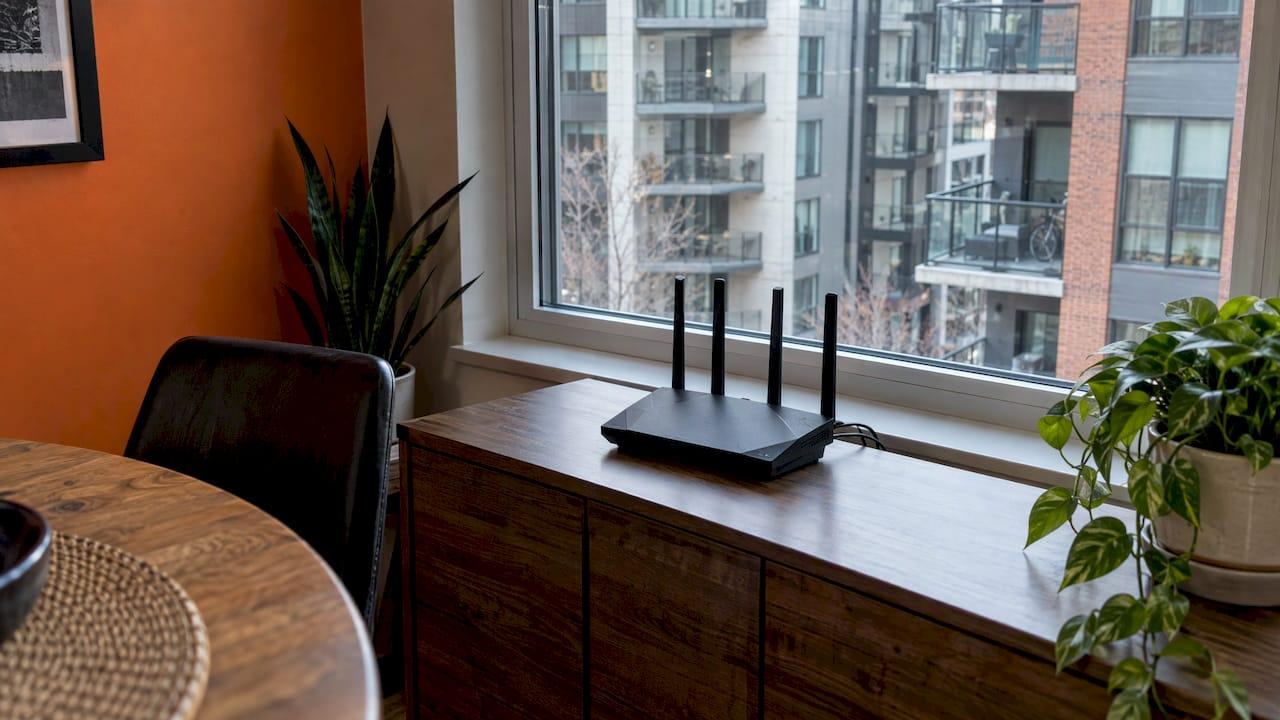
For most homes, good channel planning comes down to three decisions. On 2.4 GHz, use channel 1, 6 or 11 at 20 MHz width. On 5 GHz, use a width of 40 or 80 MHz and avoid DFS channels if devices drop out. Leave the rest on automatic unless a scan shows a real problem. Channels only fix congestion, though. If the signal is weak at the device, no channel will rescue it.
This guide shows how to scan your surroundings, choose a channel and width for each band, and tell when the problem is not the channel at all.
TL;DR
- On 2.4 GHz, stick to channels 1, 6 and 11 at 20 MHz. Pick the one with the fewest competing networks and the strongest local signal.
- On 5 GHz, overlap matters much less. Choose the least busy channel, try 40 MHz if reliability is the goal, and step off DFS channels if devices vanish.
- Scan with a phone app from the rooms where you use Wi-Fi, not just beside the router.
- Keep automatic channel selection on unless you have a specific reason to go manual.
- If a room is weak, fix placement or add an access point before touching channels.
Table of Contents
- What a Wi-Fi channel actually is
- Step 1: Scan what is around you
- Step 2: Choose a 2.4 GHz channel
- Step 3: Set channel width
- Step 4: Choose a 5 GHz channel and decide on DFS
- Should you leave channel selection on automatic?
- When the channel is not the problem
- A worked example
- Our perspective on channel planning
- Plan the network when you build or upgrade
- FAQ
- Sources
What a Wi-Fi channel actually is
Every Wi-Fi network transmits on a slice of radio spectrum called a channel. Your router and your neighbours' routers share those slices. When two networks use the same or overlapping channels, they have to take turns, and everyone's speed and reliability suffer.
The 2.4 GHz band is the crowded one. Its channel centres sit only 5 MHz apart, yet each channel is about 20 MHz wide, so neighbouring channel numbers overlap heavily. Linksys-style channel guides and Intel's channel-planning guide both land on the same practical conclusion: in North America, channels 1, 6 and 11 are the three that stay clear of one another.

The 5 GHz and 6 GHz bands offer far more room. That is why Innovation, Science and Economic Development Canada (ISED) suggests a household with 2.4 GHz interference can try switching to 5 GHz or 6 GHz in the router's wireless settings. It also cautions that the wireless environment is constantly changing, so a channel that was ideal last spring may be crowded now.
Step 1: Scan what is around you
Before changing anything, look at the situation. A Wi-Fi analyzer app on your phone lists nearby networks, the channel each uses and how strong each one is.
- Walk to the places where Wi-Fi matters: the home office, the media room, the bedroom at the far end of the house.
- Run the scan in each spot and note which channels show the strongest competing networks.
- Write down your own network's signal strength in the same spots.
Microsoft's home-layout guidance recommends checking network performance in different parts of the home and looking at an analyzer's network graph before changing channels. Its approach weighs the signal strength and overlap at the device, not simply how many networks appear near the router. A neighbour's network that is faint in your living room matters far less than one that is loud there.
In a detached house on an acreage, you may see almost nothing and the scan will be quiet. In a townhouse or condo, expect dozens of networks on 2.4 GHz and a handful on 5 GHz.
Step 2: Choose a 2.4 GHz channel
Stay on 1, 6 or 11. Intel explains that using any other primary channel exposes your network to interference from more than one neighbouring channel, which is worse than sharing a channel outright. Microsoft suggests choosing the one of the three with the fewest access points and the strongest local signal, and only if those look similar, considering overlapping networks.
Here is how to apply it:
| What the scan shows | What to do |
|---|---|
| One of 1, 6 or 11 is clearly quieter | Set your router to that channel |
| All three are similarly busy | Pick the one where competing networks are weakest in your main rooms |
| Neighbours sit on odd channels such as 3 or 8 | Ignore them and still choose 1, 6 or 11 |
| Nothing stands out | Leave the router on automatic |
Why does 2.4 GHz still matter? Range. It travels further and passes through walls better than 5 GHz, so many smart-home devices, from plugs to thermostats and some speakers, only use it. Wakey Internet, a Canadian provider, suggests keeping 20 MHz as the starting point in most homes because it improves coexistence and stability for range-oriented and smart-home devices. We cover how those devices behave on a network in our smart home networking guide.
Step 3: Set channel width
Width is how much spectrum a channel occupies. Wider channels carry more data but expose you to more of your neighbours' transmissions. Intel's guidance frames width as a reliability control: wider means faster in the best case and more vulnerable in a busy one.
20 MHz or 40 MHz on 2.4 GHz
Use 20 MHz. Intel says 40 MHz operation on 2.4 GHz is rarely optimal because it can interfere with nearly the entire band. With only three clean channels available, a 40 MHz channel leaves no room for them. If your router offers a combined "20/40 MHz" or "auto" setting on 2.4 GHz, choose fixed 20 MHz when you are chasing stability.
20, 40, 80 or 160 MHz on 5 GHz
Here you have choices. Intel recommends trying 40 MHz on 5 GHz when reliability is the priority, noting that 80 MHz and 160 MHz can deliver more speed but also pick up more interference. Wakey Internet describes 40 MHz as a stability-focused manual starting point and 80 MHz as a higher-throughput option when your surroundings and devices support it.
| Band | Width | Best for |
|---|---|---|
| 2.4 GHz | 20 MHz | Nearly every home; smart-home devices, range |
| 5 GHz | 40 MHz | Busy buildings, steady video calls and streaming |
| 5 GHz | 80 MHz | Quiet surroundings, fast devices close to the router |
| 5 GHz or 6 GHz | 160 MHz | Special cases with compatible devices and little interference |
A practical way to decide: start at 80 MHz if you live somewhere quiet and your devices are close to an access point. Drop to 40 MHz if you see dropouts or lag in a crowded building.
Step 4: Choose a 5 GHz channel and decide on DFS
On 5 GHz, there are many more channels, and overlap is a smaller concern. Microsoft's advice is to generally choose the channel with the fewest access points at the relevant signal strength.
Some 5 GHz channels are DFS channels, short for dynamic frequency selection. ISED's 5 GHz spectrum policy explains that DFS exists to protect radar: equipment must detect radar signals and avoid or vacate the affected channel. The policy specifies a 60-second channel-availability check before use and a 30-minute non-occupancy period after radar is detected.
In practice, that means a router on a DFS channel can briefly leave the channel and move. Some devices handle that badly. Intel advises moving from a DFS channel to a non-DFS channel when devices disappear or connections drop, because DFS can create compatibility or availability problems for some clients.
The rule of thumb:
- If everything is stable on a DFS channel, leave it. The extra room can be valuable in apartments and townhouses.
- If a laptop, TV or streaming box drops off intermittently, switch to a non-DFS channel and see if the drops stop.
- If the router is on automatic and you have no problems, there is nothing to do.
Should you leave channel selection on automatic?
Often, yes. Wakey Internet recommends leaving automatic channel selection enabled unless you have a specific reason to configure channels manually. Modern routers re-evaluate the environment on their own, which matches ISED's point that conditions keep changing.
Go manual when:
- A scan shows your router parked on a channel that is clearly worse than another in the rooms that matter.
- You have several access points and want them on different channels so they do not compete with each other.
- You see repeating problems at the same time each evening, which can point to a neighbour's network or a device that starts transmitting then.
If you do set channels by hand, write down what you changed and when, so you can undo it. Change one thing at a time and test for a few days.
When the channel is not the problem
Microsoft is blunt about this: a channel cannot make up for an inadequate signal. Before you spend an evening on channel maps, check the basics.
- Placement. Place the access point centrally and as high as practical, away from corners and not under a desk, and check for nearby metal objects. Our guide to where to put your Wi-Fi router walks through it room by room.
- Distance and obstacles. TP-Link Canada notes that 5 GHz generally gives faster speeds but shorter range and more sensitivity to walls than 2.4 GHz, so a far-off bedroom may do better on 2.4 GHz. Linksys describes the same trade-off: 2.4 GHz for reach, 5 GHz for nearby high-throughput use such as streaming, gaming and calls.
- Updates. ISED recommends checking equipment setup, applying current operating-system, driver and firmware updates, and moving a device closer to the router when diagnosing problems.
- One device only. If just one laptop struggles, test it against another device in the same spot. For a Mac that keeps dropping Wi-Fi, these MacBook Wi-Fi troubleshooting steps help you tell a device fault from a network one.
- Building materials. Steel, stucco, and insulated concrete forms can block signal badly. See Wi-Fi in a metal building for what works.
If a house is large or has thick walls, a single router with perfect channel settings still will not cover it. That is a job for additional access points, ideally wired back to the router. Our access point placement rules cover how many you need and where they go, and MoCA over existing coax can serve as the backbone where Ethernet was never run.
A worked example
Imagine a two-storey home in a Calgary suburb with an office on the top floor and a TV in the basement.
- A phone scan in the office shows eight networks on 2.4 GHz: four on channel 6, two on 1, two on 11. Channel 11 networks are faint here.
- The router is on channel 6 at 20/40 MHz. Smart plugs keep dropping offline.
- You set 2.4 GHz to channel 11, fixed 20 MHz. The plugs reconnect and stay.
- On 5 GHz, the router auto-selected a DFS channel at 80 MHz, and the basement streaming box occasionally freezes. You move to a non-DFS channel and 40 MHz. The freezes stop.
- The basement still has a weak signal at the far corner. A wired access point there solves what no channel setting could.
This is an illustration of the method, not a measured result. Your own scan will drive your choices.
Our perspective on channel planning
Most channel problems we see are really design problems. A homeowner has changed channels three times, and the real issue is a single router at one end of a house with a steel-framed wall between it and the media room.
Our approach is to treat the network as part of the whole system. Smart lighting, motorized blinds, whole-home audio and security cameras all depend on a steady connection, and so do the TVs and streamers in your theatre. We plan the wiring and access point locations first, then set channels and widths to suit the space.
That is why we offer low voltage wiring and networking alongside AV and smart home work, with a single point of contact. Wiring access points rather than relying on a wireless link means channel settings stay simple: 20 MHz on 2.4 GHz for the devices that need range, and sensible widths on 5 GHz for the rest. For builders on new homes and acreages, the best time to get this right is before the drywall goes up.
JupiterAV
Plan the network when you build or upgrade
If you are building, renovating or adding a theatre, automation or security cameras, the network deserves a plan at the wiring stage. JupiterAV designs and installs smart home systems, audio and cinema rooms, security and CCTV, and commercial AV for homes, businesses and builders in Calgary and area. Our systems are scaled to the space and designed to disappear into the architecture, with ongoing support after the install.

To talk through your project, get in touch with JupiterAV. If you are comparing hardware first, our notes on Wi-Fi routers for Canadian homes and mesh Wi-Fi systems are a good place to start. For a household with visitors or many smart devices, guest Wi-Fi setup and home VLANs keep traffic organized.
FAQ
What is the best 2.4 GHz channel?
There is no universal best, but it should be 1, 6 or 11. Scan from the rooms you use and pick the one with the fewest competing networks and the strongest local signal. Use 20 MHz width.
Is 20 MHz or 40 MHz better on 2.4 GHz?
20 MHz is the safer choice. Intel says 40 MHz on 2.4 GHz is rarely optimal because it can interfere with nearly the whole band, and 20 MHz favours stability for range-oriented and smart-home devices.
Should I use DFS channels on 5 GHz?
You can, if everything stays connected. DFS channels give you more room but must vacate if radar is detected. If devices drop or disappear, move to a non-DFS channel.
How do I reduce Wi-Fi interference at home?
Scan to find the quietest channel, use 20 MHz on 2.4 GHz and consider 40 MHz on 5 GHz. Update firmware and drivers, and move the access point to a central, elevated spot. If 2.4 GHz is congested, try 5 GHz or 6 GHz for devices that support them.
Does changing the channel fix weak signal?
No. A channel change helps with congestion, not distance or walls. For weak rooms, improve placement or add a wired access point.
Sources
- ISED: Cutting through interference, Wi-Fi, Bluetooth, GPS and other licence-exempt devices
- ISED: SP-5150 MHz spectrum utilization policy for licence-exempt WLANs
- Microsoft Support: Wi-Fi and your home layout
- Intel: Guide to configure Wi-Fi channels and channel widths
- Wakey Internet: Best practices to improve your Wi-Fi experience
- Linksys: Why change the wireless channel of your router