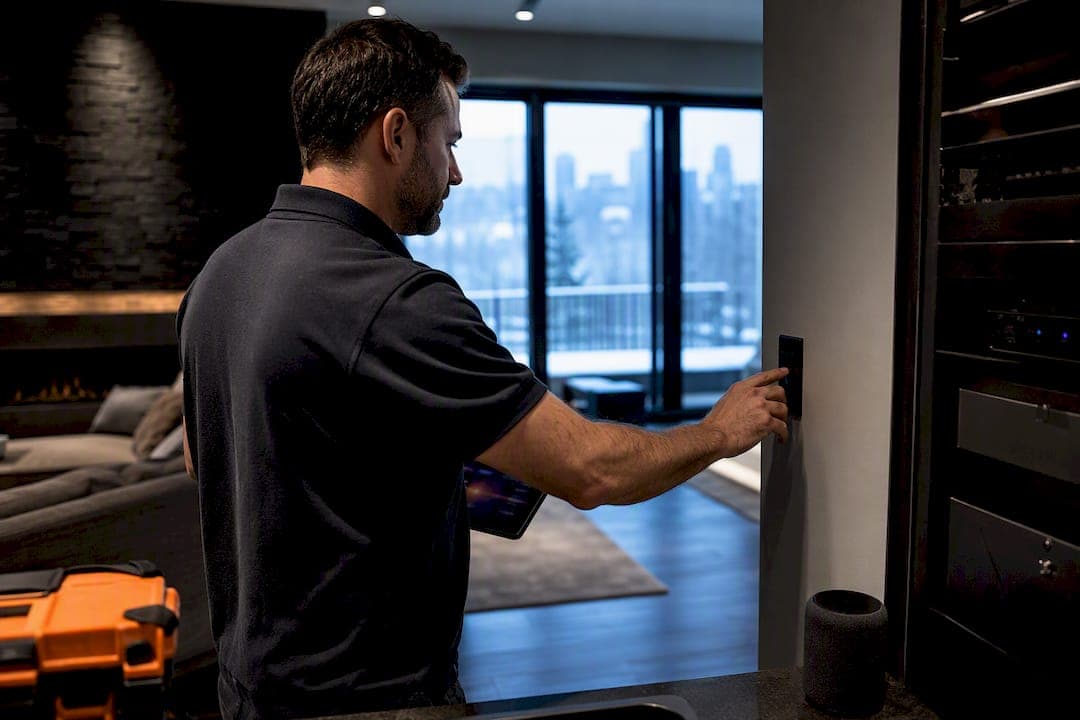
Control4 voice control lets you run scenes and devices through Amazon Alexa, Google Assistant, and Apple Siri/HomeKit, covering lights, thermostats, locks, video, and room volume with a spoken command. Two things have to be true before any of that works: your system needs Control4 Smart Home OS 2.8.2 or newer, plus an active 4Sight subscription. Once those boxes are checked, linking your Control4 account to a voice assistant and running device discovery gets you talking to your house.
TL;DR:
- Voice control requires Control4 OS 2.8.2 or newer and an active 4Sight subscription for proper cloud communication and device discovery.
- Naming devices with short, specific, and consistent labels like room plus device prevents confusion and function errors in voice commands.
- Enabling Privacy Guard limits device state reporting to voice assistants, balancing privacy with real-time feedback and natural responses.
- Scene-based commands for common activities like Goodnight or Movie improve reliability and simplify voice interactions compared to individual device control.
- Proper setup, regular device discovery, and avoiding duplicate names are essential; complex configurations benefit from professional dealer programming for best results.
Table of Contents
- What Control4 voice control can actually operate
- Software, subscriptions and device compatibility you need first
- How to connect Control4 to Amazon Alexa
- Setting up Google Assistant with Control4
- Naming rules and how Privacy Guard actually works
- Scene design and when dealer programming pays off
- Fixing the most common voice control problems
- When DIY voice setup makes sense, and when it doesn't
- Get your Control4 voice system professionally set up
- Where to check the official details
- Sources
- FAQ
What Control4 voice control can actually operate
Voice control isn't limited to flipping a light switch. Control4 exposes a fairly wide device catalogue to Alexa, Google Assistant, and Siri/HomeKit, and the system is built to trigger scenes as easily as single devices. Here's what you can typically ask for:
- Lights and dimmers, individually or by room
- Lighting scenes ("goodnight," "movie time," "away")
- Thermostats and HVAC setpoints
- Door locks
- Ceiling fans and motorized blinds
- Video sources and room volume
Scenes are where voice control earns its keep. Instead of naming five devices, one phrase like "goodnight" can lock doors, dim lights, and set back the thermostat in a single pass. If your system includes a Halo remote or another smart remote, you also get push-to-talk voice control for AV and TV functions directly from the handset, no smart speaker required.
Software, subscriptions and device compatibility you need first
Before touching a voice app, confirm your Control4 controller runs OS 2.8.2 or later. That version threshold isn't arbitrary. It's the point where Control4 hardened the communication layer that lets Alexa, Google, and other cloud assistants talk to your system securely. Try to link an older controller and the skill or action either fails outright or drops devices mid-discovery.
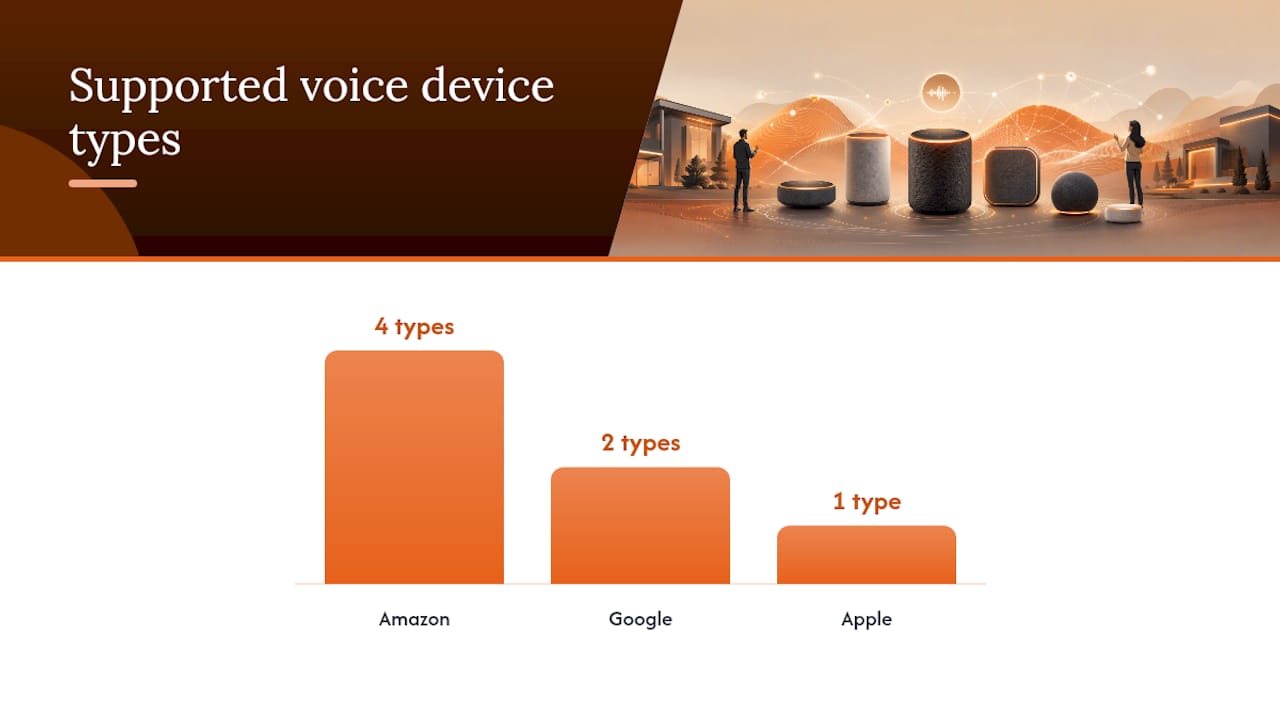
You also need an active 4Sight subscription, since it provides the cloud connectivity and remote access layer that Alexa and Google Assistant integration depends on. Without it, your local network can run scenes fine, but nothing reaches outside the house.
On the hardware side, confirm compatibility across the ecosystem you're using:
- Amazon: Echo Dot, Echo, Echo Show, and Fire TV devices with voice remote
- Google: Google Home and Nest speakers/displays
- Apple: iOS devices for Siri and HomeKit-exposed accessories
By the numbers: the Control4 Alexa quick-start documentation is explicit that OS 2.8.2 and an active 4Sight plan are the baseline for any third-party voice integration, not a nice-to-have.
You'll also need a stable local network, valid Control4 account credentials, and the homeowner's own Amazon or Google account handy for the linking step.
How to connect Control4 to Amazon Alexa
Getting Alexa talking to your Control4 system is mostly account linking and patience through the discovery process. Here's the sequence that works:
- Open the Alexa app and search for the Control4 Smart Home Skill, then enable it.
- Enter your Control4 account credentials when prompted to link the two accounts.
- Ask Alexa to discover devices, or trigger discovery manually from the app. This step pulls in every device and scene you've authorised for voice control.
- Log into customer.control4.com, go to Automation, then Amazon Alexa, and enable or disable individual devices for voice exposure.
- While there, edit voice names for anything Alexa mispronounces or confuses with another device.
- Re-run discovery any time you rename a device or add a new one. Alexa doesn't pick up changes automatically.
Pro Tip: Keep voice names short and specific, room plus device, like "Kitchen Lights" or "Office Blinds." Vague or duplicate names are the single biggest cause of Alexa grabbing the wrong device.
If you're running Alexa on multiple Echo devices in adjoining rooms, physically separating them helps too. Two speakers picking up the same command at once can trigger a device twice or cause a confusing double response.
Setting up Google Assistant with Control4
Google's linking flow covers similar ground to Alexa but runs through a different portal. Sign into customer.control4.com, then navigate to My Automation and select Voice Control to start the Google Home linking process.
- From the Voice Control page, follow the prompt to link your Google account.
- Authorize the connection in the Google Home app when it appears.
- Confirm which device categories transferred. Google Assistant supports most of the same types Alexa does, lights, scenes, locks, thermostats, but motorized blinds and video devices sometimes need a second look to confirm they came through correctly.
- Open the Google Home app after linking and verify discovered devices match what you expected. Naming conflicts show up slightly differently here than in Alexa, so check this step even if Alexa worked cleanly.
One meaningful difference from Alexa: Smart Home Privacy Guard changes how much state information Google receives, and it's worth understanding before you hand the system to a homeowner.
Naming rules and how Privacy Guard actually works
Duplicate or vague device names cause more voice-control headaches than any other single issue. Control4's own guidance recommends short, unique one or two word names, following a Room plus Device or Scene pattern:
- "Dining Light" instead of "Dining Room Ceiling Fixture"
- "Goodnight" instead of "Evening Shutdown Scene"
- "Office Blinds" instead of "Study Window Covering"
When Control4 detects two devices with the same or similar name during discovery, it flags a duplicate-name warning in the Automation pages. Fixing it just means renaming one device to something more specific and re-running discovery.
Pro Tip: Document your naming convention on paper or in a shared note before programming a multi-room system. It saves hours of renaming later when a client asks why "Living Room Light" controls the wrong fixture.
Privacy Guard is the setting most installers under-explain. When enabled, Control4 only reports a device's state to the assistant when it's specifically commanded by voice. When disabled, Control4 reports state continuously, so Alexa or Google always knows if a light is on or off, even if you never asked. That continuous reporting makes voice responses feel more natural ("your lights are already on") but shares more device activity data with the assistant platform. It's a real trade-off, not a default to set and forget, and one worth walking homeowners through directly, similar to the broader conversation around Alexa privacy settings.
Scene design and when dealer programming pays off
The best voice experiences don't expose forty individual devices. They expose a handful of well-built scenes. A few examples worth programming into almost any home:
- Goodnight: lights off, doors locked, thermostat set back for the night
- Cooking: task lighting up, music on, blinds adjusted for glare
- Movie: lights dimmed, shades closed, AV input and volume set automatically
Handing a voice assistant one scene command instead of five separate device commands cuts down on recognition errors and confusing partial results. It also means less for the assistant, and the homeowner, to remember.
This is where dealer programming starts to matter. Basic device exposure is something a motivated homeowner can manage. Timers, conditional logic (only close the blinds if it's daytime), and choreographed multi-device scenes are a different animal. A Smart Home Pro can build in the sequencing and delay logic that prevents race conditions, like blinds and lights fighting each other because two scenes tried to fire at once.
Fixing the most common voice control problems
Most voice control failures trace back to one of five causes. Work through them in order before calling for support:
- Re-run device discovery. Any name change, new device, or enable/disable toggle needs a fresh discovery pass in the Alexa or Google Home app.
- Check your OS and subscription. Confirm Control4 OS is 2.8.2 or newer and that your 4Sight subscription is active and not lapsed.
- Resolve duplicate names. Head into Automation settings, find the flagged conflict, and rename to something short and unique.
- Toggle Privacy Guard. If state reporting seems broken or delayed, disable Privacy Guard temporarily to see if the issue clears.
- Check Halo remote drivers. For voice issues on a Halo remote, confirm you're using Control4 approved IP drivers and a wired Apple TV connection where required. Network or driver level issues beyond this point usually need a Smart Home Pro.
When DIY voice setup makes sense, and when it doesn't
Basic voice control, a handful of lights, a couple of scenes, is genuinely manageable without a technician. Where it gets harder is whole-home scene choreography, motorized blinds tied into lighting logic, or a network with enough smart devices that segmentation starts to matter. Control4's own guidance backs this up: dealer programming makes complex, multi-device voice workflows meaningfully more reliable than a self-managed setup ever gets. If your household includes accessibility needs, voice control paired with thoughtful automation planning tends to work best when a professional has tuned the scenes in advance rather than relying on trial and error.
— JupiterAV
Get your Control4 voice system professionally set up
Skip the trial and error of duplicate device names, half-working scenes, and Privacy Guard settings nobody explained. Professional services offer sales, installation, and programming of Control4 voice integrations from the ground up, including whole-home scenes tuned for Alexa, Google Assistant, and Siri/HomeKit so commands actually do what you expect the first time.

If your current setup feels unreliable or you're planning a new Control4 install and want it voice-ready from day one, compare that against DIY versus dealer options and then book a site survey with our team. We'll assess your existing devices, network, and scene needs, and quote the install directly. Request a quote from JupiterAV to get started.
Where to check the official details
For exact steps and current requirements, consult Control4's Alexa quick-start guide and the Google Assistant setup documentation directly from Control4.
Sources
FAQ
How do I activate voice control on Control4?
Link your Control4 account inside the Alexa app or through customer.control4.com for Google Assistant, then run device discovery to pull in your authorized devices and scenes.
Can I control my home automation using voice commands?
Yes. Control4 supports voice commands for lights, scenes, thermostats, locks, blinds, video, and room volume through Alexa, Google Assistant, and Siri/HomeKit.
How much does a Control4 system cost?
Pricing depends on the number of devices, scene complexity, and whether professional programming is included, so the best way to get an accurate number is a site survey and quote from a dealer like JupiterAV.
Does Alexa work with Control4?
Yes, provided your Control4 controller runs OS 2.8.2 or newer and has an active 4Sight subscription, both required for the Alexa skill to connect and discover devices.