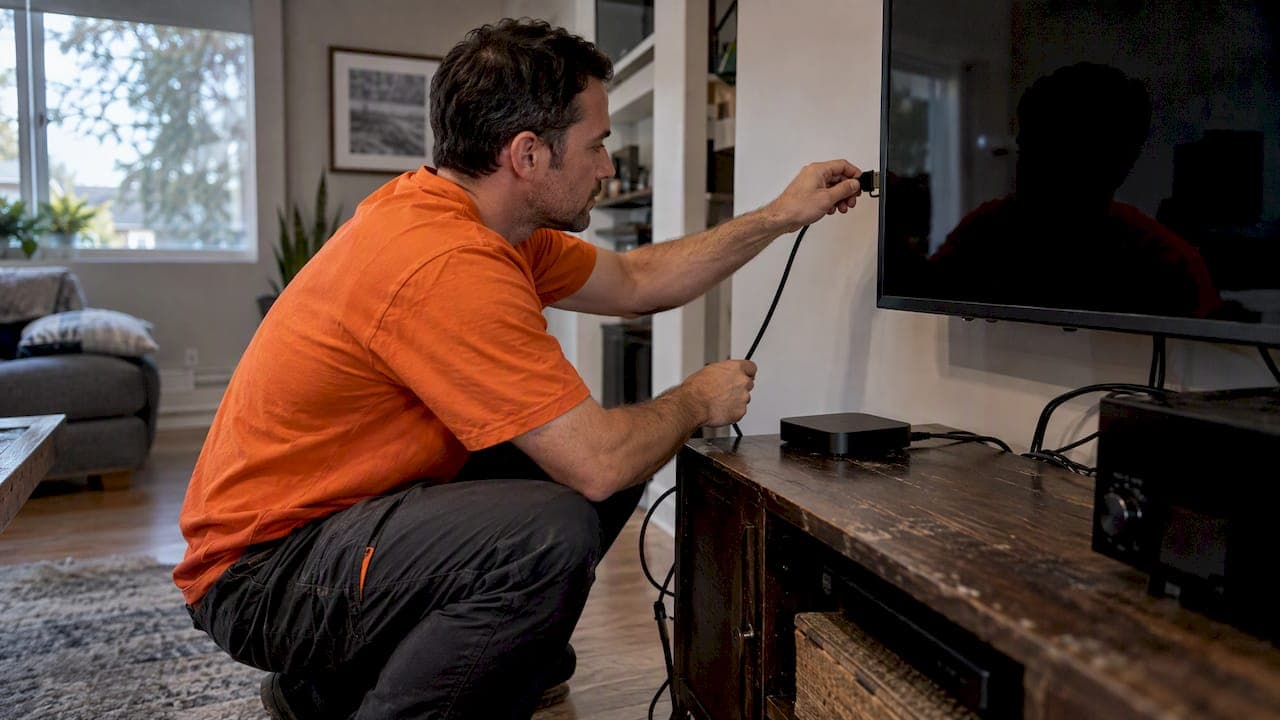
An HDMI handshake is the three-step conversation between source and display: hot-plug detect, EDID capability exchange and HDCP authentication. When it fails, you get no signal, flicker, dropouts or sparkles. Start with two moves: reseat both ends of the cable firmly, then power everything off and back on in reverse order, display first and source last.
TL;DR:
- Power off the source, receiver, and display, unplug them for a minute, then start the display first, receiver or switch next, and source last.
- Test a short certified cable directly; change one variable at a time, and a stable 1080p output at 60 Hz points to bandwidth or EDID trouble.
- Ultra High Speed cables support up to 48 Gbps for 4K at 120 Hz or 8K at 60 Hz, while lower rated cables may fail.
- Bypass receivers and switches, then add devices back one at a time; seek professional testing if a port fails with a proven cable.
- Unsupported mode messages suggest EDID trouble, while black screens limited to protected streams point toward HDCP; bypass intermediate devices before considering an EDID emulator.
Table of Contents
- How does the HDMI handshake work?
- Which quick fixes should you try first?
- Is your HDMI cable or port the problem?
- Why do power sequencing and timing matter?
- How do you handle EDID and HDCP problems?
- Why do chains with an AVR, switch or extender fail more often?
- What should you check on streamers and consoles?
- When should you call a professional?
- Need help with persistent HDMI problems in your home?
- FAQ
- Sources
How does the HDMI handshake work?
Before a picture appears, your source and display run through a short checklist. CEDIA describes the handshake as physical hot-plug detection, an EDID capability exchange and HDCP authentication, and a failure at any stage shows up as no signal, flickering or total picture loss. That gets worse when several devices sit between the source and the screen.
Knowing which stage failed tells you where to look:
- Hot-plug detect: The source senses that something is physically connected. A loose connector, a worn port or a damaged cable can make this contact flicker on and off, which looks like random dropouts or a screen that blanks when someone bumps the TV stand.
- EDID exchange: The display tells the source which resolutions, refresh rates and audio formats it supports. If that data is corrupted, missing or stale, the source may output a mode the display cannot show, and you see a black screen or a "signal not supported" message.
- HDCP authentication: Content-protection keys have to match between devices. A failed check usually appears as a black screen on protected content, a picture that works for a few seconds and then drops, or a streaming app that refuses to play while menus look fine.
That is good news for you. It means a few careful tests often fix the issue without replacing anything.
Which quick fixes should you try first?
Work through these in order. Each step is cheap, and together they resolve a large share of handshake problems.
- Power-cycle in reverse signal order. Switch off the source, any distribution gear and the display. Unplug them for a minute. Power on the display first, then the receiver or switch, and the source last.
- Reseat every HDMI connector. Unplug each end, check for bent contacts or debris, and push the plug in fully. Sony's support guidance also lists reseating or replacing HDMI cables and unplugging power for 30 seconds among its first steps.
- Swap in a short known-good cable. Use a certified cable of about 3 to 6 feet and connect the source straight to the display.
- Try a different HDMI input. Move to another port on the TV. If the problem follows the port, the port is suspect. If it follows the source, look at the source.
- Force a lower output resolution. Drop the source to 1080p at 60 Hz. If the picture stabilizes, you have a bandwidth or EDID issue rather than a dead device.
- Disable HDMI-CEC while testing. Auto-control features can send conflicting commands. Google TV community threads commonly recommend turning CEC off on both the TV and the source when inputs switch randomly.
- Check for firmware updates. Update the TV, receiver and source, then test again.
Pro Tip: Change one thing at a time and note the result. If you swap the cable, the port and the resolution all at once, you will never know which one fixed it.
Manufacturer sequences follow the same logic. A TCL community troubleshooting thread walks through checking inputs, power-cycling everything, trying alternate cables and ports, forcing a standard output such as 1080p at 60 Hz and switching off quick-start features, with a factory reset kept as a last resort before warranty service.
Is your HDMI cable or port the problem?
Cables cause more handshake trouble than most people expect, especially once you move to high-bandwidth modes. Hdmi states that Ultra High Speed cables support up to 48Gbps, which is needed for 8K at 60 Hz and 4K at 120 Hz, and that standard cables often fail in those modes. A cable that carried 1080p happily for years can cause sparkles or dropouts the day you connect a new console or enable a higher refresh rate.
Here is how to sort out what you have:
- Know the cable types. Ultra High Speed is the label for the demanding modes. Premium and High Speed cables handle lower bandwidth, which covers many 4K at 60 Hz setups but not the newest modes.
- Check the certification. Look for the HDMI Licensing Administrator label on the packaging and the markings printed on the cable jacket. Unlabeled cables bundled with old equipment are common culprits.
- Watch the length. Longer runs lose signal strength, and shielding quality matters more as the distance grows. Our guide to the HDMI cable length limit explains where degradation starts.
- Inspect the connector. Plugs that have been pulled in and out repeatedly can loosen, and a loose fit is a classic cause of intermittent contact.
- Read the symptoms. Sparkles in the picture, or dropouts that appear only when you change resolution, point toward a cable or bandwidth limit rather than a software fault.
The cleanest test is to replace a long or unlabeled cable with a short certified one and connect directly. If the problem disappears, you have isolated the cable or its length. If it stays, move on to timing and EDID.
Some displays also label only certain ports as high bandwidth. Check your TV's manual, or look at how professional models are specified, such as this Samsung 55-inch 4K professional display, and put your highest-spec source on the port that supports the mode you want.
Why do power sequencing and timing matter?
The source reads the display's EDID when it powers up. If the source wakes first, it may read nothing, or read the EDID of an intermediate device that is not ready, and then lock into the wrong format. CEDIA recommends the "reverse signal" sequence: power on the display and distribution gear first, then the source last, so the source reads the final display's EDID and negotiates the correct format from startup.
Timing faults have a recognizable pattern. The picture may work only after a long idle, fail when the system resumes from sleep, or drop after a mode change such as switching from a menu to a movie in a different frame rate. Forum reports on NVIDIA's SHIELD TV board describe changing resolution, reseating cables and restarting devices as ways to restore a handshake, which suggests many of these cases are timing or configuration related rather than permanent hardware faults.
To test this properly:
- Turn off the source, the receiver or switch, and the display.
- Unplug all three from power, then reconnect them after a short wait.
- Plug in and power on the display first.
- Power on the receiver or switch and wait until it shows its input.
- Power on the source last and wait for it to finish starting up.
- Note whether the picture holds through a full restart, and again after the system sleeps and wakes.
If the fault returns after sleep, look for fast-start or quick-boot settings on the source and the TV. These features skip a full negotiation to save a few seconds. Turn them off while you test, so every power-up performs a complete handshake. If the picture then stays stable, you can decide whether the few seconds saved are worth the occasional blank screen.
How do you handle EDID and HDCP problems?
EDID and HDCP faults look similar from the couch, but a few clues separate them. EDID trouble tends to show up as unsupported-mode messages or a picture only at low resolutions. HDCP trouble tends to show up as black screens on protected streams while menus and unprotected content work. In both cases, lowering the output often helps, because it reduces bandwidth demands and sometimes shifts which HDCP version is negotiated.
Try these steps, in order:
- Force a safe output. Set the source to 1080p at 60 Hz, confirm a stable picture, then step upward one mode at a time until the fault returns. That shows exactly where your limit sits.
- Bypass extras. Connect the source directly to the display, because an in-between device may be presenting the wrong EDID.
- Consider an EDID emulator. These small devices store a known-good EDID and present it to the source, so the source stops renegotiating every time something changes. CEDIA lists EDID emulators among its field-tested fixes when needed.
- Check release notes. Firmware updates often include handshake fixes. Read the notes for your TV, receiver and source before and after updating, and test again.
Handshake trouble is a documented risk in professional AV too. An EE Times article on HDCP handshake problems notes that designers should detect hot-plugs and cable changes and validate the state of HDCP-critical sink devices to avoid authentication failures.
Pro Tip: If you do add an EDID emulator, do it after the cable and port checks. It masks problems as well as solving them, so make sure you are fixing the right fault first.
Why do chains with an AVR, switch or extender fail more often?
Devices between the source and display can complicate the handshake, giving EDID, HDCP or timing problems more opportunities to occur. Add a switch or an extender and the odds climb again.
Isolation is the way through:
- Bypass the chain. Connect the source straight to the display with a short certified cable. If the picture is stable, the fault lives in the gear you removed.
- Add devices back one at a time. Reinsert the receiver, then the switch, then the extender, testing after each, until the fault returns.
- Look for repeatability. A failure that happens every time with one particular device in the path points at that device, its firmware or its cable.
- Shorten and certify runs. Keep each hop as short as practical and use certified cables throughout.
- Choose the right gear for long runs. Where a long run is unavoidable, powered extenders or professionally configured matrix switching handle it more reliably than a passive cable.
CEDIA's field guidance also lists environmental risks such as long cable runs or cables near power lines, so check how your cabling is routed. If your chain includes an AVR or soundbar and you notice lip-sync drift as well, our piece on meeting audio lip sync targets covers timing in receiver chains, and our guide to fixing TV audio with Sonos helps if a soundbar sits in your path.
What should you check on streamers and consoles?
Streaming sticks and game consoles can expose handshake weaknesses, especially when they use high-bandwidth modes or wake from sleep. Manufacturer guidance for streaming devices, such as Google's streaming help, recommends powering the streamer from a direct power source, checking the TV is on the correct HDMI input, unplugging the streamer's power cord for a minute and connecting directly to the TV to rule out an AVR or switch.
For streamers:
- Power the streamer from its own wall adapter, not a TV USB port.
- Update firmware, then test each HDMI port in turn.
- Unplug the power, not the HDMI cable, when you reboot.
For consoles:
- Use the certified cable that came with the console.
- Plug into the TV port labelled for high bandwidth.
- Turn off variable refresh rate and auto low latency mode while testing.
If a high refresh rate fails but a lower one works, you have confirmed a bandwidth limit. Sony notes that a factory reset should be a last resort, used only when other steps fail, so try it only after everything above.
When should you call a professional?
Stop the DIY work when the evidence points beyond your own gear. Several signs suggest a hardware or distribution fault: the problem appears on multiple sources, a port fails every test with a known-good cable, HDCP errors persist after firmware updates, or the cables are built into walls and cannot be swapped.

My view is that most homeowners should do the quick isolation steps first and then stop earlier than they think. Replacing devices in sequence feels productive, but it burns money and can hide the real fault. A structured diagnosis, with a direct connection, a known-good cable and a recorded power-up sequence, usually tells you more than extended guesswork.
A professional adds things you cannot easily do yourself: capturing EDID in the field, replacing in-wall runs with certified cable, configuring a receiver or matrix switcher correctly, testing firmware versions against each other, and fixing shielding or routing problems on site. We do this work on homes, businesses and new builds, so a persistent handshake fault is a normal service call for us.
— JupiterAV
Need help with persistent HDMI problems in your home?
If the steps above have not settled it, we can take over the diagnosis. Our team handles:
- Diagnostics of handshake faults across your source, receiver and display chain
- Certified cable runs, including in-wall replacements
- Receiver and matrix switch configuration
- Firmware and integration support for your AV equipment
Tell us what you see on screen and which devices are involved, and we will plan the visit around it. Reach us through our services page to book a diagnostic visit.

FAQ
Why do I keep losing my HDMI signal?
Repeated signal loss usually comes from a loose connector, a cable that cannot carry your chosen mode, or a handshake that fails after sleep or a mode change. Reseat the cable, try a short certified one and power the display on before the source.
Why does my HDMI keep flickering?
Flicker is most often a bandwidth or handshake mismatch. Lower the source to 1080p at 60 Hz and test with a known-good cable. If the flicker stops, the cable or the higher mode was the cause, and an Ultra High Speed cable may solve it for 4K at 120 Hz or 8K.
Can a faulty HDMI cable damage a TV?
A faulty cable can cause picture problems. Replace a visibly damaged cable or one with exposed wiring.
How do I know if my HDMI is faulty?
Test one variable at a time: a different cable, a different input and a different source. If the problem follows the cable, replace it. If it stays with one port across several cables and devices, that port is likely faulty.
Sources
- Troubleshooting HDMI Handshake Failures | CEDIA
- Hdmi
- TV has no signal or only shows a black screen - Streaming Help
- There's no picture on my TV when using an HDMI connection | Sony USA