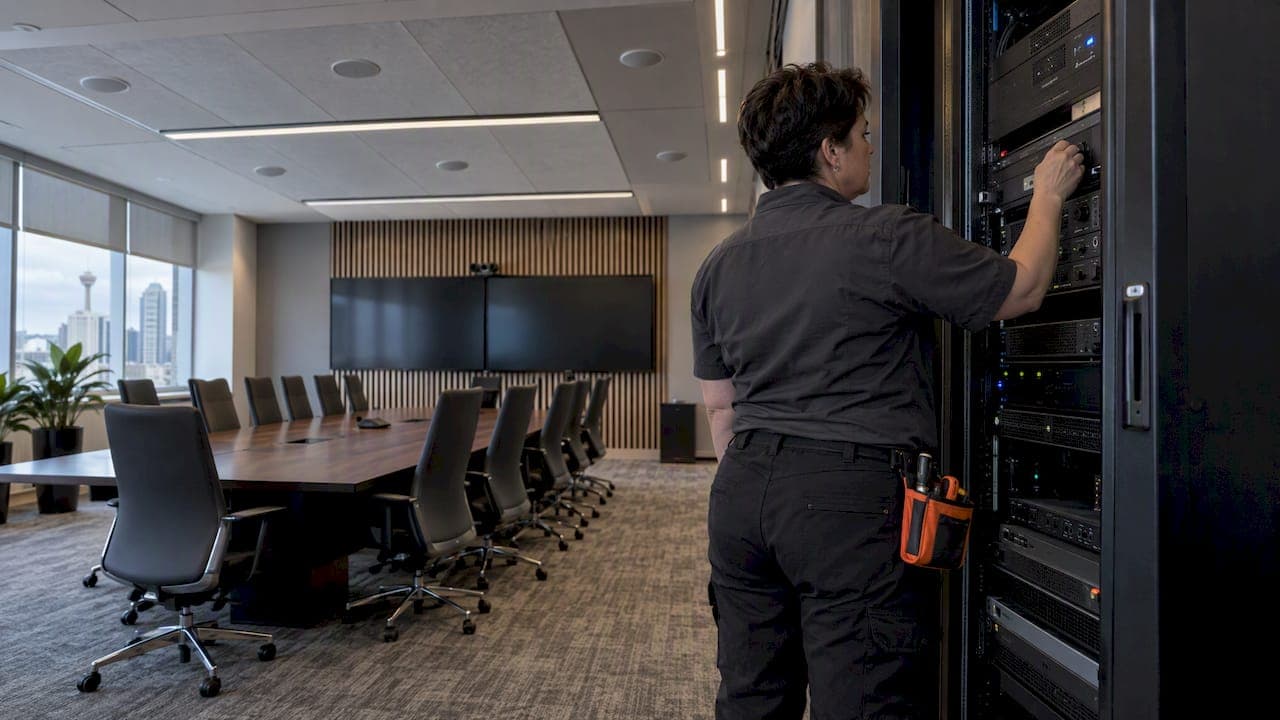
The upgrades that move the needle fastest are better microphone coverage, acoustic treatment, aligned cameras and displays, and a proper commissioning pass before anyone calls the room finished. Fix mic placement and you get intelligible audio; treat the acoustics and you cut the reverb that causes people to repeat themselves; align the camera and display and remote staff stop feeling like an afterthought. Microsoft's Teams Rooms guidance and AVIXA's design recommendations both back this order of operations.
TL;DR:
- Prioritize fixing microphone placement and acoustic treatment before adding additional audio or sound reinforcement hardware.
- Ensure microphone coverage is within 2.3 meters of each seat, especially for remote connectivity and clarity.
- For rooms with 6-12 people, focus on microphone coverage, dual displays, and a stable network, while executive spaces need soundproofing and professional cameras.
- Incorporate control systems that enable one-touch meeting start, seamless BYOD sharing, and integration with existing room automation.
- Conduct scenario-based testing with a signed commissioning report to verify room functionality before handover, emphasizing acoustics and reliable connectivity.
Table of Contents
- Assess your current room: quick checklist and symptoms that justify an upgrade
- Essential upgrades, by subsystem: audio, microphones, speakers, displays, cameras, and control
- How priorities change by room size and use case
- Budgeting and realistic timelines for typical upgrade packages
- Commissioning, testing and how to verify success before handover
- Why acoustic treatment and proper commissioning make or break AV upgrades
- Integration with existing room control systems
- User interface design and ease of use
- Power management and cable management solutions
- Future-proofing considerations: scalability and technology upgrades
- Vendor and product selection criteria and comparison
- Publisher perspective: quick wins and non-obvious trade-offs
- How JupiterAV can help: site survey, design, install, commission
- FAQ
- Sources
Assess your current room: quick checklist and symptoms that justify an upgrade
Start with symptoms, not specs. Remote attendees saying "can you repeat that" points to microphone gaps or room reverb. Echo and a boomy sound usually mean hard surfaces and no acoustic treatment. A washed-out or tiny screen image means display sizing or lighting was never matched to the room. A long wait before a meeting starts usually traces back to a confusing control interface or a network that cannot hold a stable connection.
Before specifying new gear, capture the basics:
- Seating capacity and typical headcount versus the room's actual footprint.
- Room dimensions, ceiling height, and distance from the main seating area to the display.
- Ambient noise sources: HVAC vents, open-plan spillover, or street noise.
- Existing microphone types, their age, and where they sit relative to seats.
- Network reliability for video calls, including Wi-Fi coverage and wired drops.
Run one practical test during the walkthrough: check whether every seat sits within roughly 2.3 metres of a microphone, the spacing threshold in Microsoft's Teams Rooms guidance. Rooms that fail this test are the ones where remote participants complain the most. A design checklist for conference-room AV can help structure this assessment before you talk to any vendor.
Essential upgrades, by subsystem: audio, microphones, speakers, displays, cameras, and control
Audio splits into two different jobs. Conferencing audio only needs to capture speech clearly enough for the far end to understand it. Sound reinforcement, by contrast, is for rooms where people in the room itself need help hearing each other, usually larger spaces or ones with background noise. AVIXA's guidance suggests asking whether reinforcement is even needed before buying it: many small rooms with decent acoustics never require it. When a room does need it, a digital signal processor (DSP) and distributed ceiling speakers, rather than one loud speaker at the front, keep volume even across every seat.
Microphone coverage comes down to four realistic options: ceiling arrays, beamforming bars, pendant or boundary mics on the table, and lavaliers for presenters who move around. Ceiling arrays and beamforming bars tend to simplify cabling and cleaning compared with scattering table mics, and they align with the overlap-of-coverage approach in Microsoft's spacing guidance.
Speaker placement should aim for even coverage across the room rather than one hot spot near the front. Ceiling speakers generally distribute sound more evenly than a pair of wall speakers in rectangular rooms, and routing microphone and speaker signals through a DSP with proper gain structure prevents feedback loops. Ceiling speaker placement guidance covers the spacing rules that keep coverage consistent.
Cameras need a field of view that matches the room, not a one-size-fits-all webcam. A resolution of 1080p or higher is the baseline, and wider rooms often benefit from multiple cameras so no one sits out of frame. Microsoft's hybrid-meeting guidance notes that camera and display configuration should let remote participants appear at a natural, life-size scale, which means mounting height and sightlines matter as much as resolution.
Displays should be sized to the room's viewing distance, and TV mounting height guidance applies just as directly to a boardroom as to a living room. Larger rooms or ones that mix content sharing with video calls often do better with dual displays, one for the people on screen and one for shared content.
Control should remove friction, not add steps: one-touch join presets, simple BYOD casting for laptops, and a scheduling panel outside the door so no one wanders in on the wrong booking.
Pro Tip: Before adding more microphones, check whether the room's acoustics are the actual problem. More gain rarely fixes a reflective room.

How priorities change by room size and use case
Room size and meeting type decide what to fix first.
- Huddle rooms (two to four people): an integrated bar with built-in mic and camera is usually enough. Avoid over-engineering a space this small with separate components it doesn't need.
- Standard rooms (six to twelve people): prioritise microphone coverage across the whole table, dual displays, and a network path solid enough to hold a call without dropping.
- Executive boardrooms: acoustic treatment, redundant signal paths, professional-grade cameras, proper lighting, and scenario-based commissioning all matter more here than in any other room type, since failures are more visible and costlier.
- Large or presentation spaces: plan for a dedicated PA system, multiple cameras, and production-level audio and video, often with staff support during live events. Microsoft's guidance on large hybrid events flags camera distances beyond 30 feet or more than three in-room presenters as signals that a room needs full production gear rather than a standard setup.
Budgeting and realistic timelines for typical upgrade packages
Most projects fall into one of three tiers:
- Refresh: swap ageing mics, speakers, or a display without touching acoustics or wiring. Fastest option, smallest scope.
- Upgrade: add acoustic treatment, a new camera and display pairing, and a DSP, usually alongside some cable and conduit work.
- Full refit: rebuild the room's AV from the wiring up, including acoustic treatment, control systems, and network drops.
A typical project runs through a site survey, design and specification, procurement, installation, commissioning, and training. Smaller refreshes can close in a few weeks; full refits with custom millwork or acoustic panelling usually need longer lead times for ordering and scheduling. Budget for ongoing costs beyond the install too: service contracts, software licensing for the conferencing platform, and spare parts for mics and cables that wear out faster than displays.
Commissioning, testing and how to verify success before handover
A room is not finished until it passes scenario-based tests, not just a power-on check. AVIXA's guidance on executive boardrooms recommends scripted scenarios with pass or fail criteria rather than a subjective "it feels fine" signoff.
- Run a hybrid meeting with two in-room speakers and confirm both are heard clearly at the far end.
- Test a presentation with screen share to confirm content and camera switch cleanly.
- Force a network dropout and confirm the room recovers or fails over as expected.
- Check mute and privacy controls respond instantly and visibly.
- Verify microphone coverage against the roughly 2.3 metre spacing rule from Microsoft's planning guidance.
- Confirm camera framing keeps every seat in view at a natural eye line, then time a scheduled start from the calendar panel.
Pro Tip: Ask for a signed commissioning report, not just a verbal "it's working." It becomes the reference point if something breaks later.
Request four things from any integrator before handover: a commissioning report, saved control presets, a one-page user quick-start, and a named escalation contact for support calls.
Why acoustic treatment and proper commissioning make or break AV upgrades
Acoustic treatment should come before microphone selection, not after. A reflective room forces more microphone gain to compensate, which raises the noise floor and makes speech harder to follow, not easier. Panels placed at first-reflection points reduce that reverb and improve clarity more reliably than adding another microphone, a point AVIXA's acoustic treatment guidance makes directly. An office acoustic treatment guide walks through where those panels typically go.
Executive intent is often vague: "make it work like it does in the big conference room." Translating that into testable requirements, mic coverage targets, camera framing rules, failover behaviour, is what prevents rework after installation. A session with a facilitator who can turn business goals into technical specification, such as the structured approach in Metapilot's executive boardroom planning, cuts down on the back-and-forth that otherwise stretches a project timeline.
Treat acoustics and commissioning as line items in the budget, not afterthoughts squeezed in at the end.
— JupiterAV
Integration with existing room control systems
A conference room upgrade rarely stands alone. Lighting, motorized blinds, and the AV control panel all need to work from the same interface, or staff end up juggling three remotes to start one meeting. Lutron Caseta and Clara motorized blind systems, for example, can be tied into a single control panel alongside the display and audio system so one preset dims the lights, lowers the blinds, and wakes the display at the same time.

The key design decision is whether the room's existing lighting and blind controls can talk to the new AV system or need replacing. Older lighting controls sometimes lack the integration protocols a modern AV control system expects, which forces a choice: add a bridge device or replace the control layer during the same project. Either path is cheaper to solve during the upgrade than after, since retrofitting integration later usually means re-opening walls or ceilings that were just closed up.
Blinds matter more than they get credit for. A room with glare on the display during a video call undermines a presentation as much as bad audio does, and automated blinds tied to a one-touch "start meeting" preset solve that without anyone touching a cord. The same logic applies to lighting scenes: a dimmed room for video calls and a brighter scene for in-person workshops, switched automatically rather than left to whoever walks in first.
Getting this right at the design stage, rather than bolting it on later, is one of the clearer arguments for treating the AV upgrade and the room's broader automation as one project instead of two.
User interface design and ease of use
The best AV system in the world fails if nobody can start a meeting without help. A one-touch join button, visible the moment someone walks in, should be the default expectation for any upgraded room. Complicated menus, multiple remotes, or a control panel that requires a login before anything happens are the most common reason rooms get a reputation for being "difficult," even when the underlying hardware is fine.
Scheduling panels outside the door reduce a different kind of friction: double bookings and people wandering into occupied rooms. Pairing that with calendar integration means the room already knows a meeting is starting and can prompt the right preset instead of waiting for someone to tap through menus.
Simplicity should extend to BYOD content sharing. A guest presenter should be able to connect a laptop and share a screen without installing anything or asking for a cable they don't recognize. Wireless casting handles most of this, though a wired HDMI backup is worth keeping for the days the network misbehaves.
The test that matters here is not whether the interface looks modern. It's whether a new hire, with zero training, can walk in and start a video call within 30 seconds. Rooms that fail that test usually trace the problem back to too many steps, not bad hardware.
Power management and cable management solutions
Clean cable runs are not cosmetic, they affect reliability. Loose cables near a display or table often loosen over time from regular use, which shows up later as an intermittent "it worked yesterday" fault that is far more annoying to diagnose than a dead cable.
Low voltage wiring run during installation, rather than surface-mounted cables added afterward, keeps runs shorter and reduces the number of connection points that can fail. In-wall and in-ceiling routing also keeps the room looking like a conference room instead of a server closet, which matters in client-facing or executive spaces.
Power management deserves the same attention as signal cabling. A dedicated power conditioner or surge-protected power distribution unit protects displays, DSPs, and control processors from the small voltage spikes that shorten equipment life over time. Cable management trays under the table or behind the display keep power and signal cables separated, which cuts down on the hum and interference that can creep into audio lines routed too close to power.
For rooms with frequent BYOD laptop charging, built-in power and USB-C ports at the table save a scramble for outlets, and planning those into the table or credenza during installation avoids a tangle of extension cords later.
Future-proofing considerations: scalability and technology upgrades
Conferencing platforms keep adding features, and AI-driven meeting tools are becoming a bigger part of vendor roadmaps, as reflected in recent reporting on conferencing platform growth. A room built today should be able to absorb software updates without a hardware replacement every time a platform adds a feature.
The practical way to future-proof a room is to separate the parts that age quickly from the parts that don't. Displays and mounting infrastructure tend to last years. Compute pucks, cameras, and conferencing software move faster, so choosing a room design where those components can swap out without rewiring the whole room saves money down the line.
Platform-agnostic design matters here too. A room wired to only ever run one conferencing platform locks in risk if the organization switches tools, something real-world AV upgrade project specifications increasingly call out as a requirement. Favouring AV-over-IP distribution and standard mounting hardware over proprietary, single-vendor lock-in keeps a room flexible as needs change.
Scalability also means designing the infrastructure, conduit, network ports, power, for a slightly bigger room than today's headcount. Adding two more seats later shouldn't require ripping open a wall.
Vendor and product selection criteria and comparison
Choosing AV equipment comes down to a handful of practical questions rather than a feature checklist. Does the gear integrate with the conferencing platform the organization already uses. Is it certified or supported by that platform, which reduces troubleshooting headaches later. Does the vendor offer local service and parts availability, since a dead microphone during a board meeting is not the time to wait on an overseas shipment.
Interoperability matters more than any single spec sheet number. A camera with excellent resolution is a poor fit if it doesn't talk cleanly to the room's existing control system or conferencing software. Platform-agnostic, AV-over-IP approaches tend to age better than proprietary single-brand ecosystems, a preference echoed in institutional AV upgrade project requirements that specify integrated, platform-agnostic solutions with BYOD support.
Ongoing support is worth weighing as heavily as upfront price. A maintenance agreement that covers firmware updates, replacement parts, and a real phone number to call beats a slightly cheaper system with no support path. Network reliability planning, including how the room's AV traffic shares bandwidth with the rest of the building, is also worth confirming with whoever manages telephony and network infrastructure, since a room's video calls and the office phone system often compete for the same connection, a consideration covered in network planning resources for multi-site offices.
Publisher perspective: quick wins and non-obvious trade-offs
The fastest wins are usually free: reposition an existing microphone, or raise a display a few inches to fix a bad sightline. The trade-off clients miss most is piling on extra microphones to fix a problem that acoustic panels would solve for less money. Stage the project, fix reliability first, and let feature requests wait.
— JupiterAV
How JupiterAV can help: site survey, design, install, commission
A reliable conference room comes from getting the foundations right, not from buying more gear. A good approach starts with a site survey and custom design, moves through professional installation and low voltage wiring, and ends with commissioning and ongoing support, so the room works the way it was promised before anyone signs off on it.

- Site survey and custom design matched to the room.
- Installation covering AV, control integration, and low voltage wiring.
- Commissioning and ongoing service support after handover.
Visit JupiterAV to book a site survey or request a specification for your next upgrade.
FAQ
What is the best AV setup for a conference room?
The best setup depends on room size, but most rooms benefit from a ceiling microphone array or beamforming bar, a camera with a wide enough field of view for everyone to be seen, and a display sized to the room's viewing distance. Microsoft's Teams Rooms guidance and AVIXA's design recommendations both stress fixing acoustics and mic coverage before adding extra hardware.
What is an AV in a conference room?
AV in a conference room refers to the audio and video equipment, microphones, speakers, cameras, and displays, that let people in the room and remote participants see and hear each other clearly. It also includes the control system that ties those components together into a single easy-to-use interface.
What AV equipment is needed for a conference?
A functional conference room typically needs a microphone system, speakers or a soundbar, a camera, a display, and a control interface to join and manage calls. Larger or presentation-focused spaces may add a dedicated PA system and multiple cameras, as outlined in Microsoft's guidance for large hybrid events.
What is the best audio system for a conference room?
For most rooms, a ceiling microphone array or beamforming bar paired with distributed ceiling speakers and a DSP for gain control delivers more even coverage than a single table microphone and speaker. AVIXA's guidance recommends confirming whether sound reinforcement is even necessary before adding complex PA hardware to a small or medium room.
Sources
- Microsoft guidance for Teams Rooms / certified hardware and room planning
- Conference room design guide for AV professionals | AVIXA
- Designing executive boardrooms that perform flawlessly | AVIXA Xchange