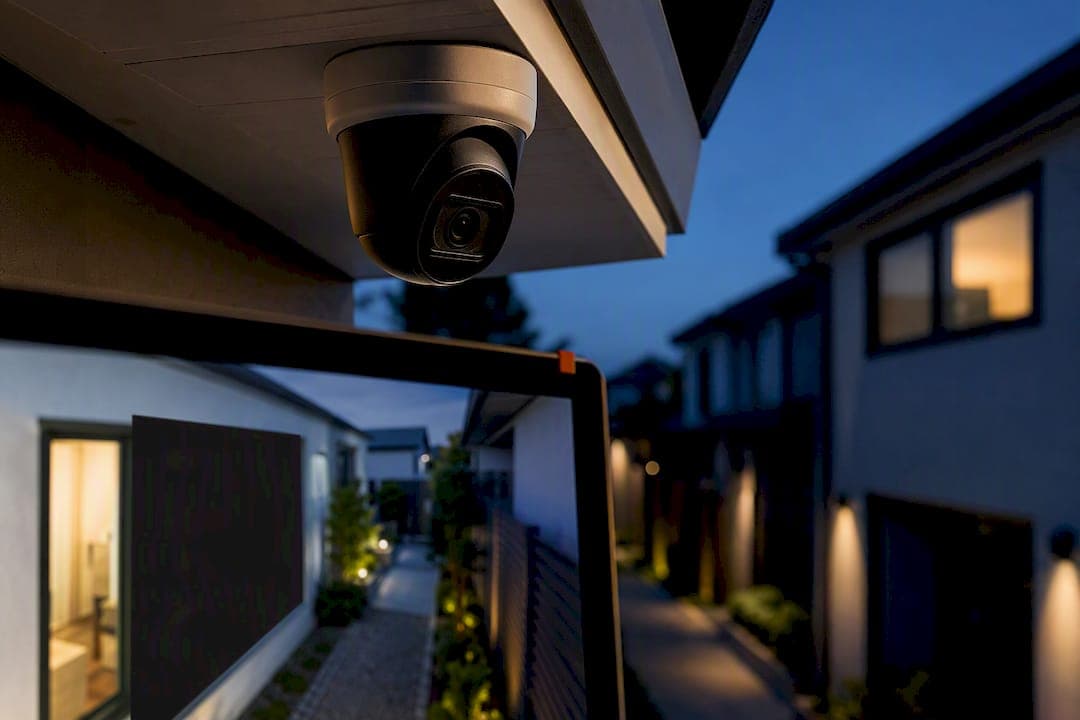
A privacy zone masks part of a camera's field of view so that area never shows up in live view, recordings, or thumbnails. Homeowners use them to grey out a neighbour's window, a shared driveway, or a public sidewalk while the rest of the frame keeps recording normally. Privacy zones are not the same as activity zones, which only filter motion alerts, or privacy mode, which shuts the camera off entirely.
TL;DR:
- Privacy zones only mask parts of the live view and recordings, but AI analytics may still process unmasked areas, so faces in privacy zones could still be analyzed.
- The number and precision of privacy zones vary across systems, with some cameras supporting irregular shapes or dynamic masking, especially in PTZ models with auto-tracking.
- Proper setup requires drawing and testing zones during installation, rechecking after repositioning or camera movement, and avoiding over-masking to prevent missing important activity.
- Masking neighbour's windows or shared areas is legal when done to protect privacy, but laws differ, so consulting local regulations or talking to neighbors is advisable.
- Professional installation ensures privacy zones hold up across firmware updates and camera movements, with documentation keeping track of setup details for accountability.
Table of Contents
- What privacy zones actually are (and what they aren't)
- How privacy zones affect recordings, alerts, and analytics
- Which cameras and systems support privacy zones (and their limits)
- How to set up privacy zones (step-by-step)
- Best practices for placement (and the mistakes that undo them)
- Privacy zones, neighbours, and the law
- When to call a professional installer
- Balancing security and privacy at home
- Let JupiterAV set up your privacy zones properly
- Sources
- FAQ
What privacy zones actually are (and what they aren't)
A privacy zone is a software-defined mask you draw over part of a camera's image. Once saved, that section appears as a solid grey or black block in live view and in every recorded clip, no matter what's actually happening in that patch of the frame. Most vendors render the mask the same way in playback as they do live, which is why CNET's breakdown of the feature treats it as a distinct tool from anything alert-related.
That distinction matters because two other features get confused with it constantly. An activity zone doesn't hide anything visually. It just tells the camera which parts of the frame should trigger a motion alert, so you stop getting notified every time a car passes on the street. Privacy mode is the blunt instrument: some cameras have a physical shutter or a software toggle that stops streaming and recording altogether, covering the whole lens rather than a corner of it.
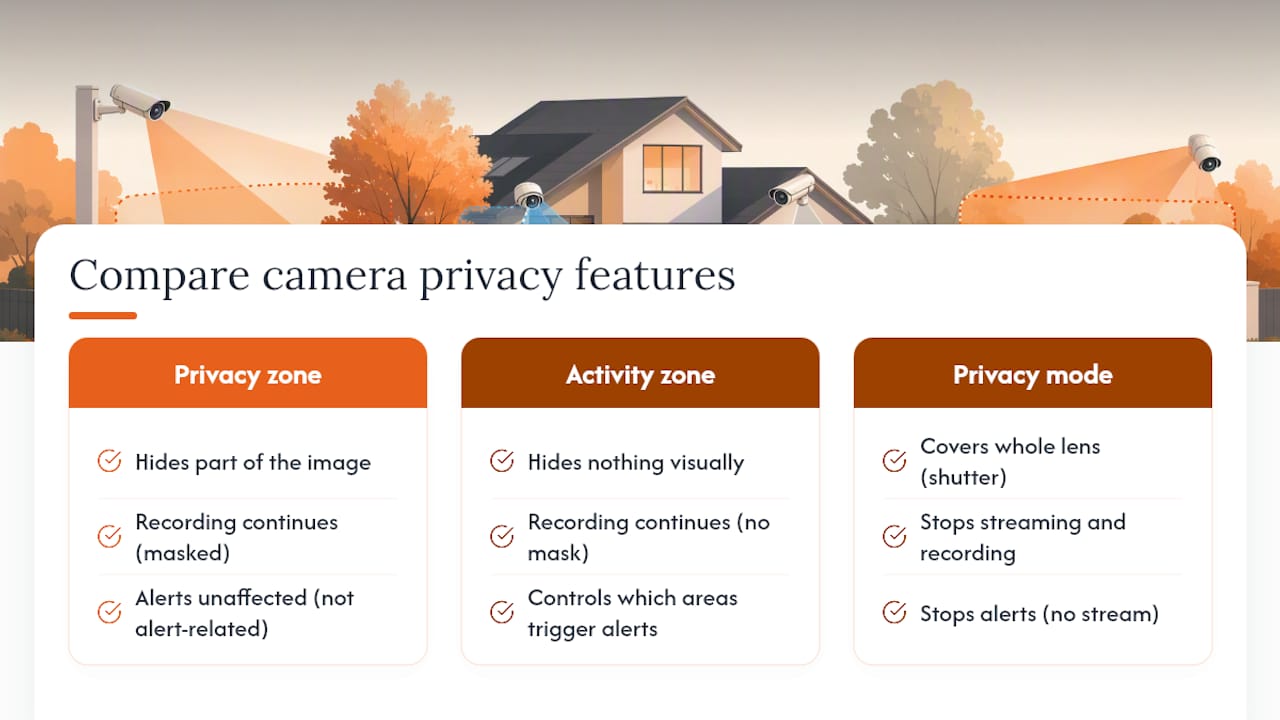
Privacy zones sit in between. You keep full coverage of your property while surgically blacking out the one section you have no legal or practical reason to record.
How privacy zones affect recordings, alerts, and analytics
The mask you see isn't always the whole story of what the camera is doing behind the scenes. Some systems only grey out the display layer while motion detection and AI analytics keep processing the original, unmasked frame. Others exclude the zone from analytics entirely. Arlo's documentation notes that its cameras keep recording and sending notifications as usual. The masked section is simply greyed out in the live feed, recorded clips, and thumbnails.
This has a real consequence for anyone relying on AI features like person detection or face recognition: a privacy zone doesn't guarantee that a face in that area was never analyzed, only that it won't be visible to you. If you're picking a smart camera partly for those AI features, it's worth understanding how AI security cameras handle zones before assuming a mask equals full data exclusion. Thumbnails generated for push notifications generally follow the same mask as the main feed, but cloud-stored clips and local NVR recordings don't always behave identically.
Which cameras and systems support privacy zones (and their limits)
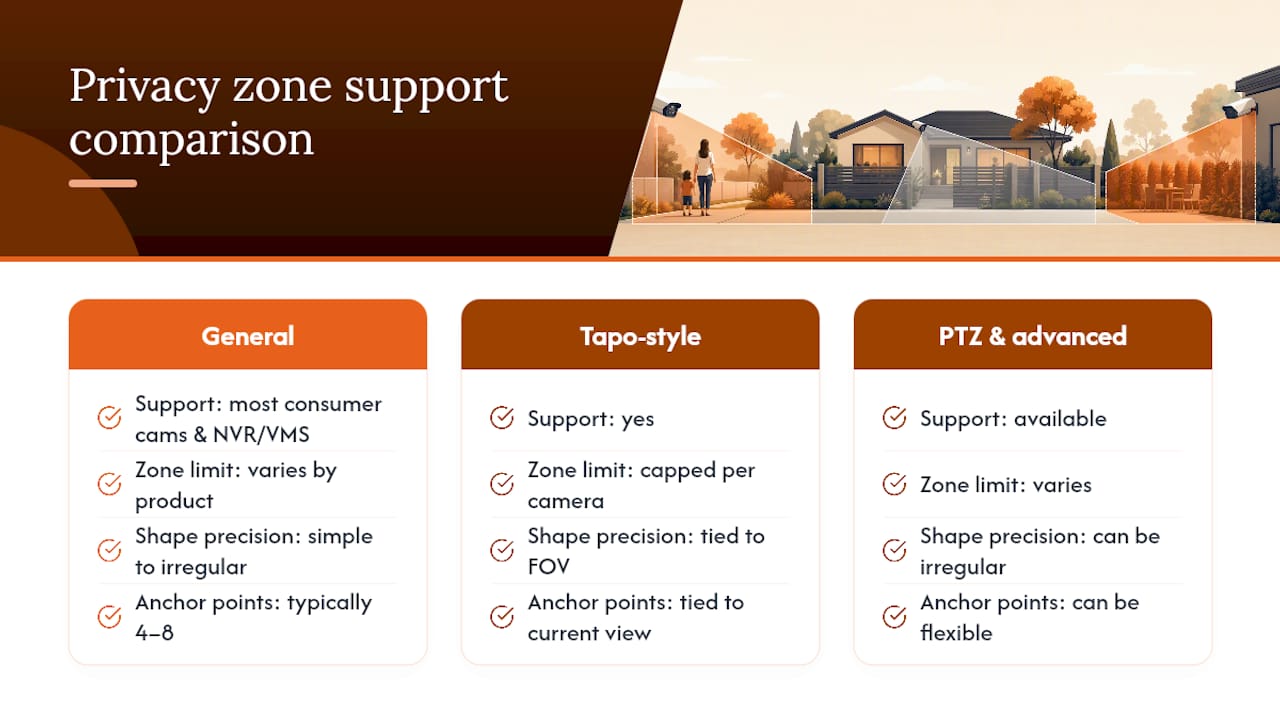
Most modern consumer cameras support some form of privacy masking, and so do the majority of NVR and VMS platforms used in multi-camera setups. What varies is the ceiling on how many zones you get and how precisely you can shape them.
TP-Link's Tapo line, for example, caps the number of zones and ties each mask to the camera's current field of view. Rotate or reposition the camera and the zone shifts with it rather than staying locked to a fixed spot on the wall behind it. Some systems give you four anchor points to draw a simple rectangle; others allow eight for an irregular shape that follows a fence line or a window frame more closely.
PTZ cameras complicate things further. If auto-tracking or auto-zoom is active, the camera can pan away from its saved position, and the privacy zone effectively stops covering what it was meant to cover. A handful of newer systems, including some Reolink models, are testing dynamic masking that tries to follow the frame as the camera moves, but this is still inconsistent across brands. If your camera has a physical shutter or a dedicated privacy mode, that's a separate, all-or-nothing control, not a substitute for zone masking.
How to set up privacy zones (step-by-step)
The exact menu wording changes from app to app, but the workflow is nearly identical across brands, whether you're in a mobile app, a web portal, or an NVR interface.
- Open live view for the camera you want to mask, then go into its device settings.
- Look for a menu called Zones, Display, or Privacy, and select Add Privacy Zone (or similar).
- Draw the mask using the anchor points provided, usually four or eight, dragging them to trace the area you want hidden.
- Resize and reposition until the mask fully covers the target area, then name the zone something specific ("neighbour's window") and tap Save.
- Check the result in live view immediately, then pull up a recent recording to confirm the mask appears in playback too.
- If the camera supports PTZ, auto-tracking, or auto-zoom, either disable those features or set the camera to a fixed "home" position first. Otherwise the zone can lose alignment the moment the camera moves.
To edit a zone later, reopen the same menu, select the zone, and adjust or delete it. One thing trips people up: deleting or changing a zone only affects footage going forward. As Ring's support documentation confirms, previously recorded clips keep whatever mask was active when they were saved.
Pro Tip: Test your zone at night and during the day. Infrared illumination and glare can shift how a mask lines up with the physical object it's supposed to cover, and a zone that looks perfect at noon can drift by a few pixels after dark.
Best practices for placement (and the mistakes that undo them)
Mask deliberately, not broadly. The goal is to protect specific sightlines, not to blind half your camera's coverage.
- Cover a neighbour's window, their entry door, or any section of a shared driveway that isn't yours to record.
- Leave your own entrances, driveway, and walkways fully visible; that's the footage you'll actually need if something happens.
- Re-test the mask any time you reposition, re-angle, or replace the camera, since the zone is tied to that specific view.
- Keep a note of what you masked and why, especially if you ever need to explain your setup to a neighbour or a bylaw officer.
The most common mistake is leaving auto-tracking or auto-zoom switched on after setting a zone, which quietly breaks the mask the first time the camera moves. The second is rotating or repositioning a camera without checking whether the old zone still lines up. The third is over-masking large areas out of caution, which can blind you to the exact activity you installed the camera to catch in the first place.
Pro Tip: If you're masking to satisfy a neighbour's concern, walk over and show them the live view with the mask applied. It takes two minutes and tends to end the conversation for good.
Privacy zones, neighbours, and the law
Masking a neighbour's window or a shared walkway is widely treated as good practice for camera owners, not just a technical nicety. Vendor guidance on the topic frames it as a way to protect others captured incidentally by a camera aimed at your own property.
Privacy law around home cameras varies by province and sometimes by municipality, so a blanket legal answer doesn't exist. If a camera setup is likely to capture a neighbour's property regularly, check your provincial privacy legislation or municipal bylaws, and consider a conversation with your neighbour before there's a complaint. For anything contentious, like a dispute already underway or a commercial property with multiple cameras, talk to a lawyer rather than relying on general guidance.
When to call a professional installer
Privacy zones on a single consumer camera are simple enough to set up yourself. Multi-camera systems, NVR-wide masking, and PTZ cameras with auto-tracking interlocks are a different problem. Getting masks to hold up reliably across several cameras usually means checking pixel density and overlap at install time, the kind of calibration covered in a pro installer's placement checklist. Professional installers document every privacy setting during setup, so homeowners and builders have a clear record of what's masked and why.
Balancing security and privacy at home
Good camera coverage and good privacy practice aren't opposing goals. Test your zones the way you'd test smoke detectors: regularly, and after any change to the setup. If you're not sure your masks are actually holding after a camera reposition, a professional can check the settings or handle the install from the start.
— JupiterAV
Let JupiterAV set up your privacy zones properly
Getting a privacy zone right on paper is one thing. Getting it to survive a camera firmware update, a repositioned mount, or an auto-tracking feature you forgot was on is another. Professional installers install and calibrate residential and commercial camera systems, and privacy zone configuration is part of every setup they document for the homeowner.
Technicians handle the parts that trip up most DIY installs: consultation on where cameras should and shouldn't see, pixel density checks so a mask actually holds at the distances that matter, and written documentation of every privacy zone so you have a record if a neighbour ever asks. We also cover camera placement strategy as part of the same visit, so your coverage and your privacy settings get designed together instead of bolted on afterward.
If you want your privacy zones set up right the first time, or you're planning a multi-camera system for a new build, book a consultation with JupiterAV and we'll walk through it with you.
Sources
- How to use privacy zones for home security cameras
- How to set up Privacy Zones for your Arlo camera
- Set Privacy Zone for Tapo Camera and Doorbell
- Using privacy features in the Ring app
FAQ
Can a neighbour legally point a camera at my house?
A camera can capture what's visible from the owner's property, but continuously recording your windows or private spaces can cross into a privacy complaint depending on provincial law and municipal bylaws. If it's an ongoing concern, raise it directly first, then check local rules or speak with a lawyer if it continues.
Which security camera is least likely to be hacked?
No camera is immune, but cameras with strong network hardening, unique credentials, and regular firmware updates carry far less risk than devices left on default settings. Cybersecurity guidance for camera networks points to network segmentation and update discipline as the biggest factors, more so than brand alone.
Where should I avoid installing security cameras?
Avoid aiming cameras directly into a neighbour's windows, bathrooms, bedrooms, or any space where there's a reasonable expectation of privacy. Use a privacy zone to mask those areas if a wider shot is otherwise necessary for your own coverage.
Is it legal for a neighbour's camera to point at my window?
It depends on your province and municipality, and on whether the camera is deliberately targeting your window versus incidentally capturing it while aimed at their own property. If a conversation doesn't resolve it, check provincial privacy legislation or consult a lawyer for your specific situation.
How do I set a privacy zone if my camera has auto-tracking?
Disable auto-tracking or auto-zoom, or set the camera to a fixed home position, before drawing the zone. Otherwise the mask stays tied to a view the camera no longer holds once it pans or zooms away from it.