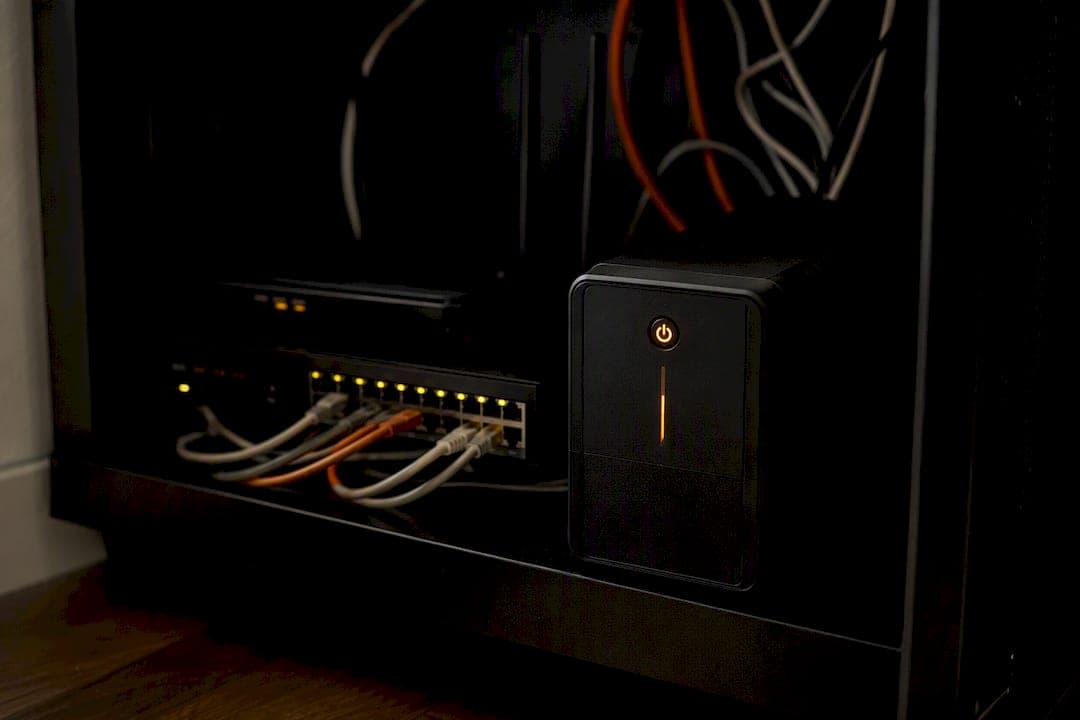
For most home networks, a line-interactive UPS with automatic voltage regulation (AVR), sized between 1000 and 1500 VA, keeps your router, modem, and a small switch or NAS running through the average power blip or hour-long outage. If your setup is just a router and modem, you can use a smaller UPS suitable for just a router and modem and still get solid runtime.
Here's what to do right now:
- Plug your router, modem, and any device you need during an outage into the battery-backed outlets on the UPS, not the surge-only ones.
- Leave printers, smart plugs, and anything non-critical on surge-only outlets or off the UPS entirely.
- Grab a $15 to $20 plug-in power meter (a Kill A Watt or similar) and measure your actual device draw for 24 hours before you buy. Guessing wastes money either way, oversized units cost more up front, undersized ones die when you need them most.
The worked sizing example later in this article shows exactly how to turn those wattage numbers into a VA rating you can shop for with confidence.
Key Takeaways
A line-interactive UPS sized between 1000 and 1500 VA, installed with proper ventilation and battery-backed outlets prioritized correctly, keeps a home network online through the outages that actually matter.
| Point | Details |
|---|---|
| Choose line-interactive with AVR | It corrects brownouts without draining the battery and suits routers, modems, and small NAS setups. |
| Size for runtime, not just load | Routers and modems typically draw less power, so oversizing VA buys hours instead of minutes. |
| Convert watts to VA properly | Divide total watts by a power factor of roughly 0.65, then add a 50 to 60% capacity margin. |
| Isolate PoE switches when possible | A fully loaded PoE switch can multiply power draw and cut router runtime significantly. |
| Place the UPS in open, cool air | Heat and enclosed cabinets shorten battery life and reduce real-world runtime. |
| Call a professional for sizing and install | JupiterAV runs a site survey, sizes for actual load, and documents a runtime test after install. |
Table of Contents
- Which type of home network UPS should you buy?
- How do you size a UPS for your devices?
- How long will a home network UPS actually run your gear?
- Should you put PoE switches on the same UPS?
- Where should you install and place a home network UPS?
- When should you call a professional installer?
- How often should you test and replace UPS batteries?
- Home network UPS: what to buy and how to size it right
- Get your home network UPS sized and installed right the first time
- Where to go for deeper UPS technical specs
- Frequently asked questions
- Sources
Which type of home network UPS should you buy?
Three UPS topologies exist, and only one of them makes real sense for a typical home network.
Standby UPS units sit idle until the power fails, then switch to battery in a few milliseconds. They're cheap, and for basic electronics that switch time is invisible. The problem is voltage regulation, or the lack of it. A standby UPS does nothing about brownouts or sags. It just watches the input voltage and, if it drops too low or spikes too high, kicks over to battery. That means your router might be running on battery power dozens of times a month just because your neighbourhood grid is a little unstable, quietly draining a battery you're counting on for the big outage.
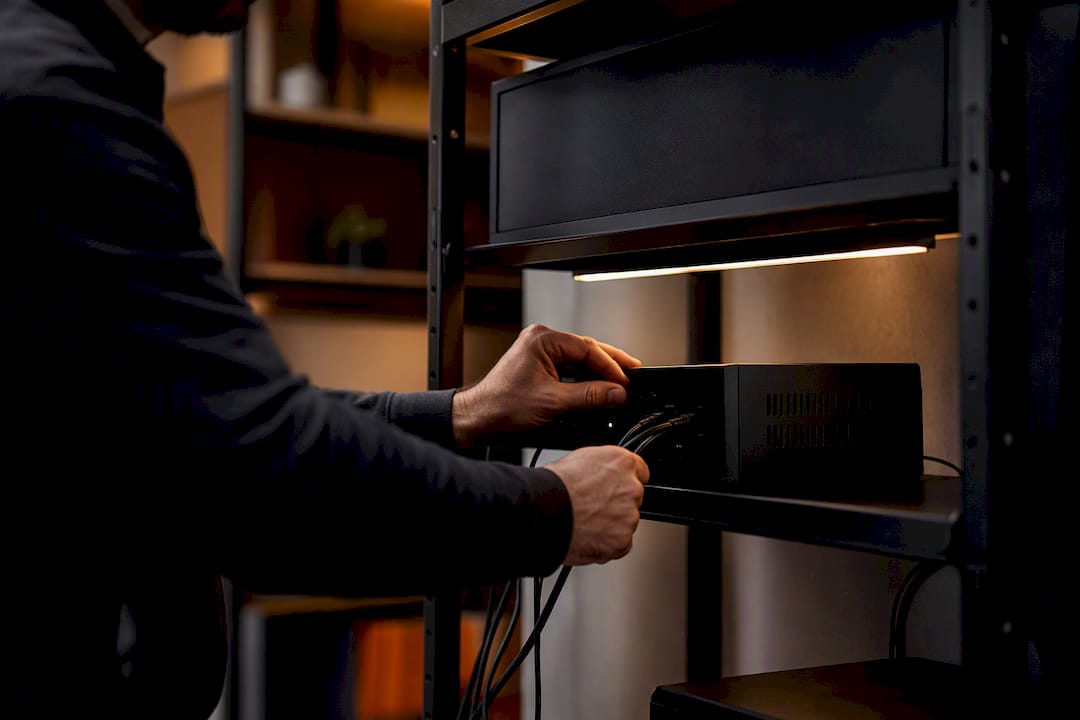
Line-interactive UPS units add AVR, a transformer that corrects minor voltage sags and surges without ever switching to battery. This is the sweet spot for home networking gear. Wirecutter's testing points to line-interactive models as the right fit for most home setups, and for good reason: your router and modem get clean, stable power almost all the time, and the battery only kicks in during a genuine outage.
Online (double-conversion) UPS units rebuild the AC waveform continuously, whether the power is stable or not. They deliver the cleanest possible output and zero transfer time, but they cost significantly more, run hotter, and burn through battery cycles faster since the battery is always in the power path. Unless you're running server-grade equipment or gear that's genuinely sensitive to millisecond-level interruptions, an online UPS for a home router setup is overkill.
A quick word on waveform. Pure sine wave output matters more than most buying guides admit. Some budget standby units produce a "simulated" or stepped sine wave on battery power. Most networking gear tolerates this fine, but some switch-mode power supplies (especially in higher-end modems and mesh routers) run hotter or louder on simulated sine wave, and a few will outright reject it. If your equipment list includes anything with an active PFC power supply, pay the extra for pure sine wave output.
Battery chemistry is the other fork in the road. Lead-acid batteries are the default in almost every UPS under $200 and typically last 3 to 5 years before capacity drops noticeably, per Wirecutter's guidance on replacement cycles. Lithium-based UPS batteries cost more upfront but last longer, tolerate heat better, and hold charge more efficiently over years of standby duty, which matters if your networking cabinet lives somewhere warm.
- Standby UPS: cheapest, no AVR, fine for low-stakes gear
- Line-interactive UPS: AVR included, best balance for routers, modems, switches, small NAS
- Online UPS: continuous double conversion, reserved for servers or highly sensitive loads
Pro Tip: If your area gets frequent brownouts rather than full outages, AVR alone might solve 90% of your problems, you may not even need much battery runtime at all.
How do you size a UPS for your devices?
Sizing a UPS is arithmetic, not guesswork, and it takes about ten minutes if you have your device list handy.
Step 1: List every device that needs backup power. Router, modem, any switch, NAS, and possibly a Wi-Fi access point. Leave off anything you don't need during an outage.
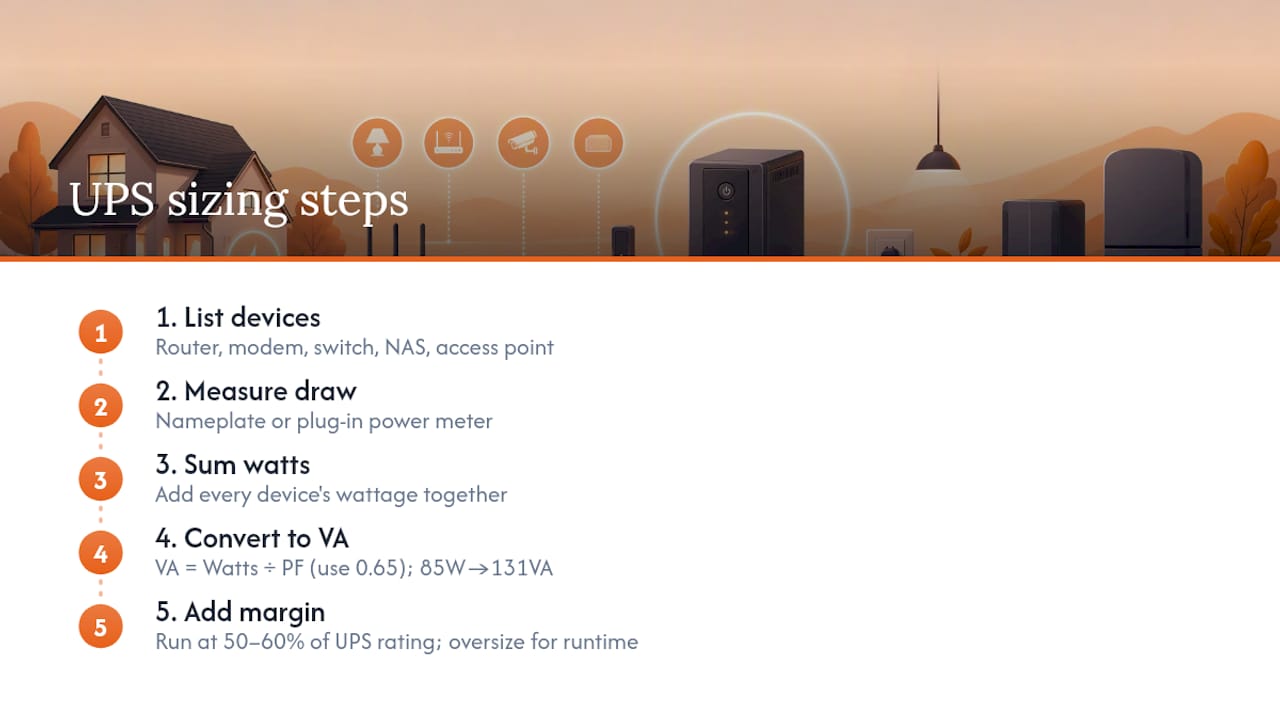
Step 2: Find each device's actual power draw. Check the nameplate on the power adapter (it lists watts or amps and volts), or better, measure it directly with a plug-in power meter. Network UPS specialists note that most routers and modems draw relatively low power compared to many other devices, far less than people assume. A basic 5 to 8 port switch usually runs 10 to 20 watts unpowered. A small NAS with two drives spinning typically pulls 30 to 60 watts.
Step 3: Sum the wattage. Add every device's draw together for your total load in watts.
Step 4: Convert watts to VA using power factor. UPS units are rated in VA (volt-amps), not watts, and the two aren't the same number. The formula, per Schneider Electric's buying guide, is:
VA = Watts ÷ Power Factor
Most small electronics with switch-mode power supplies have a power factor around 0.6 to 0.7. If you don't know the exact figure, 0.65 is a reasonable planning assumption.
Step 5: Add a safety margin. Never buy a UPS sized to exactly match your calculated load. Aim to run at 50 to 60% of the UPS's rated capacity, which gives you headroom for battery aging, additional devices later, and more realistic runtime.
Here's what that looks like in practice for a typical setup:
Run that 85 watts through the conversion: 85 ÷ 0.65 equals roughly 131 VA of actual demand. That number looks tiny, and it is, which is exactly why so many homeowners underbuy. The issue isn't running the load; it's running it long enough. A UPS technically rated for 200 VA could power that setup, but it would give you barely 20 minutes of runtime before the battery taps out.
This is where sizing shifts from "what can handle the load" to "what gives me useful runtime." For the 85 watt example above, a 1000 VA line-interactive UPS run at roughly 13% of capacity delivers several hours of runtime, not because the load demands that much capacity, but because a bigger battery bank paired with a small load is what buys you time. That's the actual lesson buried in most sizing charts: oversizing the VA rating relative to your load is how you get real hours instead of minutes.
If you're adding a NAS with more drives or a PoE switch later, size for that future load now rather than replacing the whole unit in a year.
How long will a home network UPS actually run your gear?
Manufacturer runtime charts are built in a lab with a fresh battery at room temperature, running a fixed resistive load. Your closet is not a lab. Real-world runtime typically comes in lower than the chart, sometimes by a wide margin, especially as the battery ages. Installer guidance on router and modem UPS units is blunt about this: assume the number on the box is a best case, not a guarantee, and temperature is one of the biggest reasons runtime varies. A UPS living in a warm, unventilated cabinet loses capacity faster than one in a cool hallway closet.
With that caveat in place, here's a realistic runtime range for common setups on a mid-size line-interactive UPS:
Those ranges assume a healthy, recently purchased battery. Cut them by a third or more once the battery passes the three-year mark.
Mini UPS packs versus full-sized units. Compact 12-volt "mini UPS" devices, sold specifically for routers and modems, have become popular for their simplicity. Products in this category advertise several hours of runtime from battery packs in the 7,800 to 15,600 mAh range, and some models, like the Resonate RouterUPS NxT, claim up to 6 hours for a single 12V router.
- Mini UPS packs are compact, cheap, and genuinely convenient for a router-only setup with no switch or NAS to worry about.
- They require careful voltage and current compatibility checks. Plug the wrong barrel connector or amperage into the wrong router and you risk damage, not just a failed backup.
- They generally use smaller, less robust battery cells than a desktop UPS, so long-term lifecycle and heat tolerance tend to lag behind full-sized line-interactive units.
- A desktop UPS costs more and takes up more space, but it scales, add a switch or NAS later and the same unit still covers you.
For anything beyond a single router, a standard desktop line-interactive UPS is the safer long-term investment.
Should you put PoE switches on the same UPS?
Power over Ethernet changes the math fast, and it's the single most common reason homeowners undersize a UPS after the fact.
A standard unpowered switch draws maybe 10 to 20 watts. A PoE switch feeding four security cameras, an access point, and a VoIP phone can easily pull 60 to 100 watts on top of its own baseline, sometimes more if the switch supports PoE+ or PoE++ on every port. Installers treat PoE load as a separate power planning item precisely because it multiplies so quickly compared to the router and modem sitting next to it.
You have three realistic paths:
- Dedicated UPS for the PoE switch. Isolates the heaviest, most variable load onto its own battery, so a camera system pulling extra power during a night-vision spike doesn't eat into your router's runtime.
- One UPS sized to include everything. Simpler to manage, but you need to size for the PoE switch's maximum power budget, not its typical draw, or you'll get a nasty surprise the first time every port is active.
- Hybrid approach. Put the router and modem on a smaller UPS for maximum runtime, and give the PoE switch a separate unit sized just to ride out short outages, since cameras and access points matter less than raw internet access during a brief blip.
Pro Tip: If you're only trying to keep internet access alive during outages, don't put your PoE camera switch on the same UPS as your router. Camera systems draw enough to cut your router's runtime by more than half.
Running a PoE switch continuously on battery also generates real heat inside the UPS, since the inverter is working harder for longer. That shortens battery life over time, which is one more reason a dedicated or hybrid setup often beats a single all-in-one unit for anyone running more than a couple of PoE devices.
Where should you install and place a home network UPS?
Placement affects battery life and runtime as much as the UPS specs on the box, and it's the step most DIY installs get wrong.
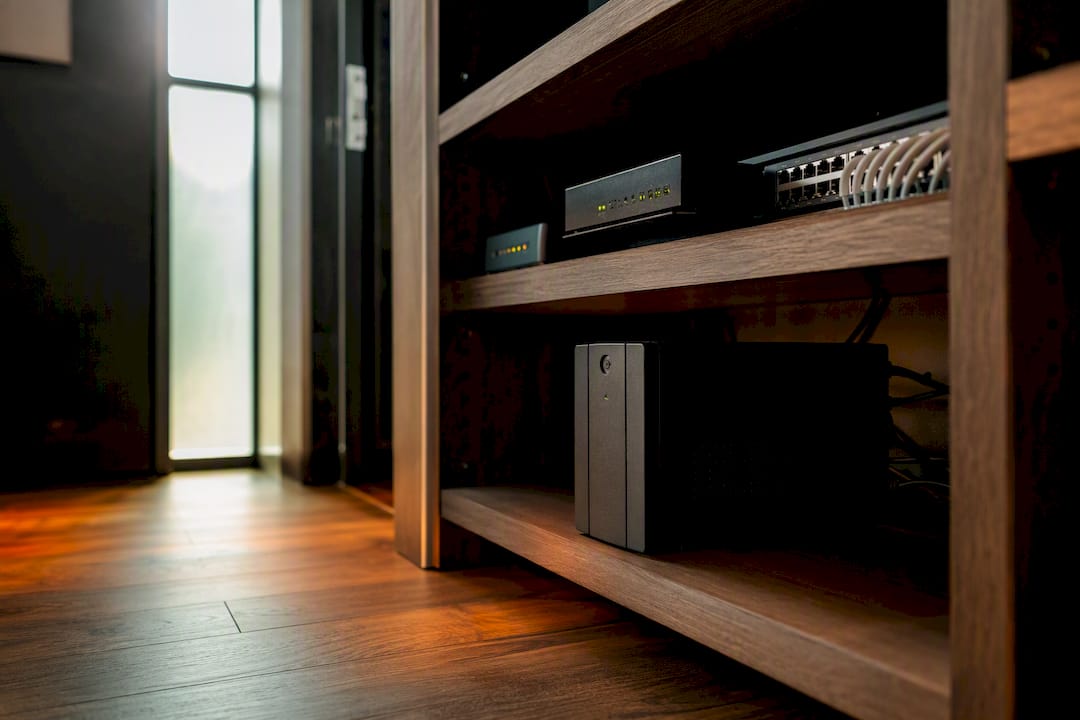
Keep the UPS somewhere cool and open. Installation guidance for network UPS units is consistent on this point: elevated ambient temperature shortens battery life and reduces available capacity when you actually need it. A UPS sealed inside a closed media cabinet with no airflow, sitting next to a warm modem, ages its battery faster than one sitting in open air on a shelf.
Avoid these placements outright:
- Enclosed cabinets or boxes with no ventilation gaps
- Direct sunlight through a window
- Anywhere near a heat register, fireplace, or furnace room
- Carpeted floors that trap heat under a desktop unit
For mounting, match the form factor to your setup. A rack-mounted UPS belongs in a proper networking cabinet with a rack PDU distributing power to switches and patch panels, like a surge-protected rack-mount power strip. A desktop UPS works fine on an open shelf with a few inches of clearance on all sides. Wall-mounted brackets exist for smaller units if floor and shelf space is tight.
Sequencing matters too. Follow this order when you connect devices:
- Plug the modem into a battery-backed outlet first; it's your connection to the outside world and needs power before anything downstream matters.
- Plug the router into a second battery-backed outlet.
- Plug any switch or NAS into remaining battery-backed outlets, prioritizing by what you actually need during an outage.
- Put printers, smart speakers, and decorative electronics on surge-only outlets.
- Run a basic load test immediately after install: unplug the UPS from the wall for two minutes and confirm every connected device stays online.
After that initial test, log the runtime you actually got and compare it against the manufacturer's chart. That baseline number is what you'll reference a year from now when you're deciding if the battery still holds a useful charge.
When should you call a professional installer?
Most of the mistakes we see in the field aren't about buying the wrong UPS, they're about how it gets installed. A router and modem shoved into a closed built-in cabinet with a UPS underneath, no airflow, no gap, sometimes touching a heat-generating patch panel. That setup can shave a year or more off battery life before anyone notices the runtime has quietly dropped.
The other recurring issue is circuit capacity. Homeowners size the UPS correctly for their devices but plug it into a circuit already loaded with other electronics, so the UPS itself never gets a clean, stable input to work from. A proper site survey checks what's actually on that circuit before mounting anything.
When JupiterAV handles a networking cabinet install, the process includes a site survey of the space and circuit, sizing based on the actual device list rather than a guess, physical mounting with real ventilation clearance, and a documented runtime verification test before we consider the job done.
If you're hiring anyone for this kind of install, ask these questions before they start:
- Will you test actual runtime after install, or just confirm the unit powers on?
- What circuit is this going on, and have you checked what else shares it?
- Will the mounting location get airflow, and how did you verify that?
- Can you document the battery install date for future replacement planning?
Pro Tip: Ask for the runtime test result in writing. A verbal "it should be fine" isn't a proof point, an actual logged number is.
How often should you test and replace UPS batteries?
A UPS you never test is a UPS you're gambling on. The good news is the maintenance routine is genuinely simple once you set the habit.
Run a monthly quick check: press the test button (most units have one) and confirm the unit switches to battery cleanly without dropping connected devices. Once a year, run a full-load test, unplug the UPS from the wall entirely for 10 to 15 minutes with everything connected, and time how long it actually lasts compared to when it was new.
Battery lifespan depends heavily on chemistry. Lead-acid batteries, the standard in most consumer UPS units, typically need replacement every 3 to 5 years, and that window shrinks in a warm closet. Lithium-based batteries generally last longer and tolerate heat better, though they cost more upfront. Watch for warning signs: shorter runtime on your annual test, a UPS that beeps or shows a fault indicator, or a battery that feels warm to the touch when idle.
- Label every battery with its install date, right on the case with a permanent marker or a printed sticker.
- Log each annual runtime test in a simple note or spreadsheet so you can spot the decline curve before the battery fails outright.
- Never toss a UPS battery in household trash. Lead-acid and lithium UPS batteries both require recycling through a battery drop-off point or the retailer you bought it from.
- Replace proactively once runtime drops noticeably below your original baseline test, don't wait for a total failure during an actual outage.
Home network UPS: what to buy and how to size it right
The advice that dominates most buying guides treats UPS sizing like a checkbox: pick a VA number, plug it in, done. That's how homeowners end up with a $150 unit that runs their router for four hours and their PoE camera switch for twenty minutes, and they never understand why until the power actually goes out.
The real lesson from the sizing math is uncomfortable for anyone who wants a quick answer: your load is almost never the constraint. A router and modem draw so little power that nearly any UPS can handle the wattage. What separates a good setup from a bad one is buying more battery capacity than the load requires, specifically so you get hours instead of minutes.
If you take one thing from this guide, prioritize measuring your actual devices over trusting a spec sheet. Ten minutes with a power meter beats an hour of guessing.
Get your home network UPS sized and installed right the first time
Buying the right VA rating is half the job. The other half, mounting it where it won't overheat, wiring it into the right outlets in the right sequence, and confirming it actually delivers the runtime you paid for, is where most DIY installs quietly fall short.

JupiterAV handles UPS sizing and installation as part of full home networking builds across Calgary, alongside structured wiring and cabinet setups for homeowners who want their router, modem, switch, and NAS properly protected rather than sitting exposed on an open outlet strip. That means a site survey to check your actual circuit and device list, a UPS sized for real headroom rather than a bare minimum, professional mounting with proper airflow, and a documented runtime test before we leave. If your networking gear has ever gone dark during a storm, or you're setting up a new cabinet and want it done once, correctly, get in touch with JupiterAV for a quote on sizing and installation.
Where to go for deeper UPS technical specs
- Wirecutter's UPS buying guide covers tested runtime figures and model-specific recommendations for home networking loads.
- Schneider Electric's UPS buying guide explains power factor, sizing formulas, and placement constraints in detail.
- Xtreme Power Conversion's router and modem UPS guide breaks down typical device wattage and temperature effects on runtime.
- JupiterAV's home ethernet wiring guide covers cabinet and cable management relevant to UPS mounting.
- JupiterAV's fiber home network guide explains ONT power needs and why fiber terminations often need battery backup too.
Frequently asked questions
What size UPS do I need for a router and modem? A UPS in the 300 to 600 VA range comfortably covers a router and modem alone, since both together typically draw only 20 to 60 watts combined. Go with 1000 VA or higher if you're adding a switch or NAS.
Do I need a pure sine wave UPS for my router? Most networking gear tolerates simulated sine wave output fine, but equipment with active PFC power supplies, common in higher-end mesh routers and modems, runs cooler and quieter on pure sine wave. It's worth the small price difference if your gear qualifies.
Can I put my PoE security camera switch on the same UPS as my router? You can, but size for the switch's maximum PoE power budget, not its idle draw, or your runtime will be far shorter than expected. A dedicated or hybrid UPS setup usually protects internet access better than combining everything on one unit.
How long will a home network UPS actually last during an outage? A router-only setup on a mid-size UPS often runs 6 to 10 hours or more, while a full setup with a switch and NAS typically runs 1 to 2.5 hours, depending on battery age and ambient temperature.
How often should I replace my UPS battery? Lead-acid batteries, the standard in most consumer units, generally need replacement every 3 to 5 years. Lithium-based batteries tend to last longer but cost more upfront.
Sources
- The 3 best uninterruptible power supplies (UPS)
- UPS buying guide: Choose the right battery backup
- UPS for Router and Modem - Xtreme Power Conversion