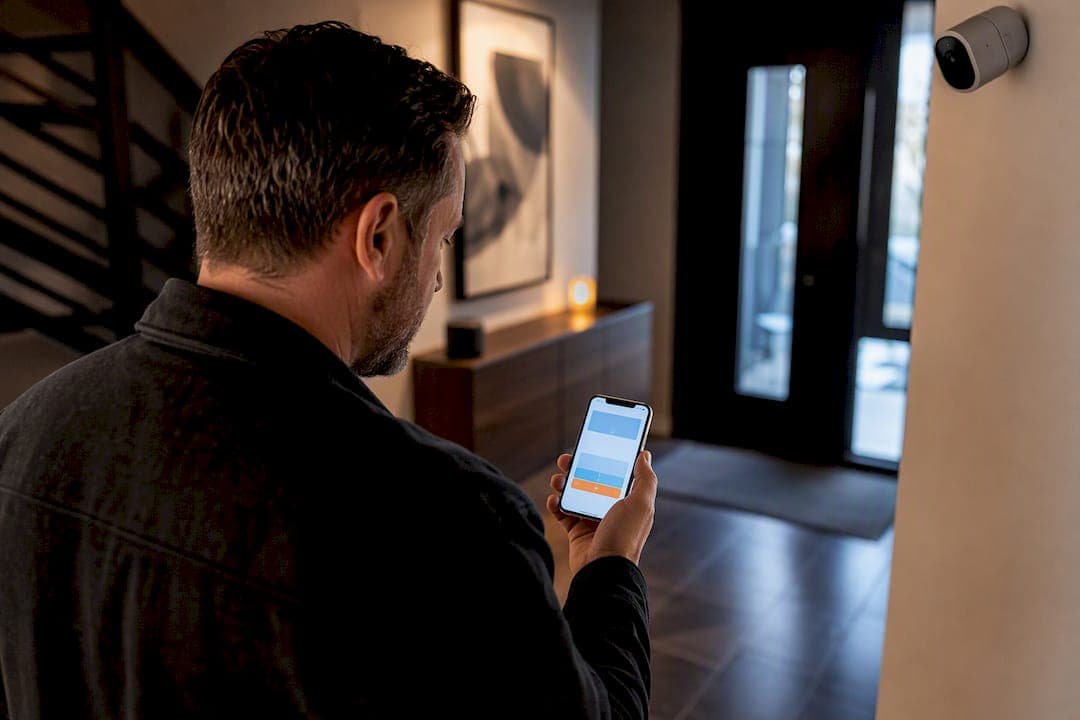
Yes. Most modern smart cameras integrate with Alexa through a vendor skill or native Works with Alexa support, and that link typically unlocks live view on an Echo Show, two‑way audio, and motion notifications, though the exact feature set depends on your camera brand. Start by opening the Alexa app, searching for your camera's skill, or checking the vendor's compatibility page before you buy anything new.
TL;DR:
- Native Alexa integrations using WebRTC offer lower latency for live view and two-way audio, while vendor skill links tend to introduce noticeable delays.
- Setting up a camera involves firmware updates, connecting to 2.4 GHz Wi-Fi, enabling the correct skill, and running a full discovery to avoid connection issues.
- Privacy can be improved by enabling two-factor authentication, disabling unnecessary cloud features, and restricting camera access through the Alexa app.
- Professional installation helps resolve complex multi-camera or advanced network configurations, ensuring stable streaming and secure remote access.
Table of Contents
- What alexa camera integration actually unlocks
- How do you link a camera to Alexa step by step?
- Why does Alexa say a camera feed is unavailable?
- How do you keep an Alexa-connected camera private?
- Using Alexa Guard alongside your cameras
- What voice commands actually work with cameras?
- How do camera-triggered routines work in Alexa?
- Which camera brands actually work with Alexa?
- An installer's view on when to call for help
- Getting your cameras properly integrated with Alexa
- Sources
What alexa camera integration actually unlocks
Not every "smart camera" talks to Alexa the same way, and the difference matters more than most product pages let on. Cameras reach Alexa through one of two paths: native Works with Alexa (WWA) certification, or a separate vendor skill that links your camera account to your Amazon account.
Native WWA integrations are built on Amazon's own device interfaces, specifically Alexa.RTCSessionController, which Amazon now requires for certification instead of the older CameraStreamController approach. That interface is built around WebRTC, which keeps latency low for live view and two‑way talk. Skill-based integrations, by contrast, route your request through the camera vendor's cloud first, then back to Alexa, which adds a hop and often a noticeable delay.
Once linked, most Alexa-compatible cameras and video doorbells support:
- Live view on an Echo Show or the Alexa app, triggered by asking Alexa to show a specific camera by name.
- Two‑way audio, letting you talk through the camera's speaker and hear its microphone from an Echo device.
- Motion snapshots and alerts, where the camera pushes a still image or clip to your Alexa app when it detects activity.
- Routine triggers, where a camera event (or a voice command) can fire other smart home actions.
There are limits worth knowing before you commit to a setup. Some Echo Show models cap continuous live preview at a set duration before you have to re‑request the feed, and older Echo Show hardware handles multiple simultaneous streams poorly. Matter, despite the marketing push behind it, still has inconsistent camera streaming support across brands, so a camera badged "Matter compatible" won't necessarily stream to your Echo Show without also using the vendor's own skill or cloud account.
How do you link a camera to Alexa step by step?
The exact screens vary by brand, but the sequence is nearly identical across every major camera vendor. Here's the version that works for the overwhelming majority of setups.
- Update firmware first. Open the camera's own app and check for a firmware update before you touch Alexa. Outdated firmware is the single most common reason discovery fails.
- Connect to 2.4 GHz Wi-Fi if given the choice. Many cameras only support the 2.4 GHz band, and mixing bands mid-setup causes the device to vanish from discovery scans.
- Open the Alexa app and go to Skills & Games, or Devices > Add Device. Search for your camera's brand name directly, since most manufacturers publish their own skill rather than relying on generic discovery.
- Enable the skill and complete account linking. You'll be redirected to log into your camera vendor's account, then bounced back to Alexa once linked.
- Run device discovery. Say "Alexa, discover devices" or trigger discovery from the app. This step is where account linking either pays off or reveals a problem.
- Assign the camera to a room so voice commands like "show the front door" resolve to the right feed without ambiguity.
- Test on both platforms. Pull up live view in the Alexa app, then test again on an Echo Show, since some feeds behave differently on a screen device than on a phone.
- **Test two‑way talk and check that motion notifications actually reach your phone, not just your Echo device.
- Verify remote access by testing from a different network, such as cellular data, to confirm the stream doesn't only work on your home Wi-Fi.
If you're setting up a motorized blind or lighting skill alongside your camera, the account-linking flow looks nearly identical, which is worth knowing if you've linked a smart blinds skill to Alexa before.
Pro Tip: Keep both the camera vendor's app and the Alexa app open on your phone during setup. Half of all "device not found" problems get solved the moment you force-close and reopen the Alexa app after account linking completes, since it often needs a fresh session to see the newly linked account.
Why does Alexa say a camera feed is unavailable?
Behind every "camera not responding" message sits a fairly specific set of technical requirements, and understanding them turns troubleshooting from guesswork into a checklist.
Amazon's relay service pulls video from a public endpoint rather than connecting directly to your camera. For that pull to succeed, your stream needs to satisfy several conditions at once, according to the technical documentation behind the Alexa Cameras HLS add-on: MPEG‑TS HLS delivered over HTTPS with a valid TLS certificate, in‑band SPS and PPS data in every segment, and short, cleanly decodable segments. Codec matters just as much as container format. Alexa expects H.264 Baseline or Main profile video; newer cameras that record in H.265/HEVC to save bandwidth will frequently fail to stream at all unless something transcodes the feed first.
Where feeds break down most often: the gap between what a camera records and what Alexa's relay can actually decode. A camera can look perfectly healthy in its own app while showing "unavailable" in Alexa, purely because the stream format never matches what the relay expects.
When a feed won't load, work through this order:
- Confirm the camera outputs H.264 baseline or main profile, not H.265.
- Check that any HTTPS endpoint has a currently valid TLS certificate, not an expired or self‑signed one.
- Rule out a firewall or intrusion detection system blocking Amazon's AWS-based fetchers.
- Make sure RTSP stream URIs haven't expired, since some vendors rotate them periodically.
- If none of that resolves it, consider an ffmpeg-based transcode pipeline, or a Home Assistant HLS add-on, to remux the feed into a compliant format before Alexa ever touches it.
How do you keep an Alexa-connected camera private?
Where video processing happens matters as much as where it's stored. Cameras that run person and motion detection on the device itself, rather than uploading raw footage to the cloud for analysis, keep more footage off remote servers by design, which is worth checking before you buy if privacy ranks high on your list.
A few configuration habits go a long way:
- Turn on two‑factor authentication for the camera vendor's account, not just your Amazon account.
- Disable cloud features you're not using, especially cloud video storage if you already record locally.
- Use per-device permissions inside the Alexa app to control which household profiles can pull up a given feed.
- Avoid pointing cameras at bedrooms or bathrooms, even indoor ones meant for pet-watching.
Our guide on Alexa privacy settings walks through the account-level controls in more depth. Professional installation also reduces misconfiguration, since installers routinely catch things like open ports or default credentials that homeowners miss.
Pro Tip: Set up an Alexa routine that disables camera streaming to guest profiles automatically, so visitors using a shared Echo device can't accidentally pull up your camera feeds.
Using Alexa Guard alongside your cameras
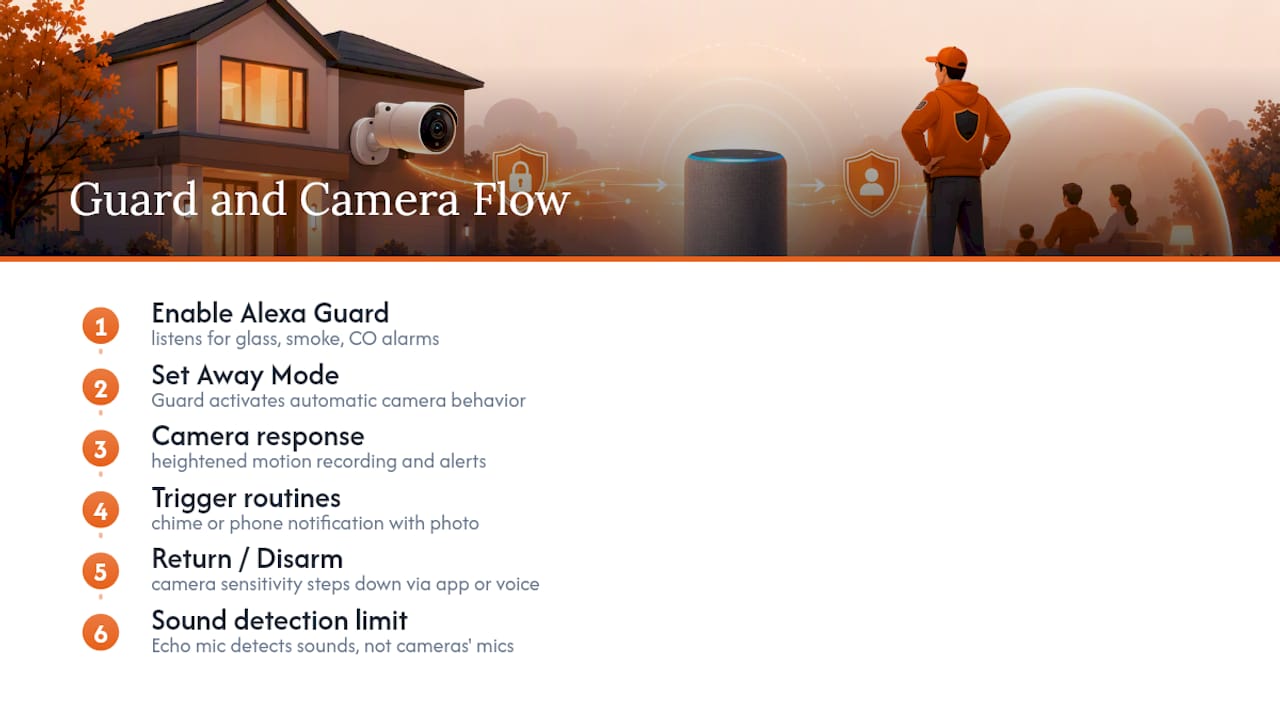
Alexa Guard adds a layer most homeowners overlook when they think about camera integration on its own. Once enabled through the Alexa app, Guard listens for glass breaking or smoke and CO alarms while you're away, and it can trigger smart lights to simulate someone being home.
The real value shows up when Guard and a compatible camera work together. Set Away Mode, and some integrated cameras will automatically switch on motion recording or heightened alert sensitivity the moment Guard activates, then step back down when you return and disarm it through the app or a simple voice command. That handoff means you're not manually toggling camera settings every time you leave the house.
Guard's alert sounds also pair naturally with camera-triggered routines. If a camera detects motion at the front door while Guard is active, you can configure a routine that plays a chime through Echo speakers or sends a phone notification with a photo attached. That's a meaningfully different experience from a camera alert alone, since it ties into the same voice-activated system already managing your lights and locks.
One practical limitation: Guard's smart alerts (glass breaking, alarms) rely on the Echo device's own microphone, not the camera. A camera without a working microphone still benefits from Guard's away-mode lighting cues and can layer motion alerts into the picture, but it won't contribute to sound detection itself. Understanding that split helps you set expectations before assuming Guard "hears" through every camera in the house.
What voice commands actually work with cameras?
Once a camera shows up as a device in the Alexa app, a fairly predictable set of phrases controls it. Naming the device clearly during setup pays off here, since Alexa needs an exact or close match to route the command correctly.
The core commands cover most day-to-day use:
- "Alexa, show the [camera name]" pulls up live view on an Echo Show or Fire TV.
- "Alexa, hide the [camera name]" ends the live view session.
- "Alexa, talk to the [camera name]" opens two‑way audio, assuming the camera supports a microphone and speaker.
- "Alexa, show me the last motion event on [camera name]" works on some vendor skills, though not universally.
A handful of camera skills extend beyond viewing. Some let you toggle privacy modes with a phrase like "Alexa, turn off the [camera name]," which disables the feed and often the microphone too, useful for camera-equipped devices you don't want listening constantly. Others support arming or disarming through voice when tied into a broader security system rather than a standalone camera.
One quirk worth knowing before you rely on this daily: command phrasing isn't always consistent across brands. Some skills expect "show," others respond better to "display," and a few require you to say the exact device name with zero variation. If a command fails on the first attempt, check the exact device name assigned in the Alexa app rather than assuming the skill doesn't support voice control at all. It usually does. It's just pickier about wording than people expect.
How do camera-triggered routines work in Alexa?
Routines turn a passive camera feed into an active part of your smart home, and they're arguably the most underused feature of the entire integration. Instead of just watching for motion, you can have that motion event trigger lights, locks, speakers, or other cameras automatically.
Building one takes a few steps inside the Alexa app's Routines section. Select a trigger, choose "smart home" as the trigger type, and pick the specific camera event you want, typically motion detection or a person-detected alert. From there, add actions: turn on a specific light, send a notification, or announce a phrase over Echo speakers like "motion detected at the front door."
Not every camera skill exposes triggers this granularly. Some only offer generic "motion detected" as an option, while more advanced vendor skills split out person detection, package detection, and vehicle detection as separate triggers you can build different routines around. If your camera's skill only offers one broad motion trigger, you'll get more false positives feeding into your routine, since it can't distinguish a passing car from a person at the door.
A practical setup worth building first: motion at a side or back door after 10 p.m. triggers exterior lights and a phone notification, but the same trigger during daytime hours does nothing, since foot traffic there is normal during the day. Time-conditioned routines like this cut down on notification fatigue considerably compared to an always-on alert.
Which camera brands actually work with Alexa?
Compatibility spans a wide range of price points and feature sets, and CNET's own testing confirms that native integrations tend to feel noticeably faster than cloud‑to‑cloud skill connections, which is a useful filter when you're comparing options.
Most major indoor and outdoor camera lines from established smart home brands, along with popular video doorbell manufacturers, offer either a dedicated Alexa skill or WWA certification. Battery-powered outdoor cameras from mainstream brands typically link through account-based skills, while several PoE (Power over Ethernet) camera systems aimed at more serious home security setups support Alexa through their NVR or hub software rather than each camera individually.
Before buying anything new, check the manufacturer's own compatibility page rather than relying on box copy, since "smart home compatible" branding doesn't always mean Alexa specifically. If you're outfitting a whole property, a Wi-Fi indoor camera with a clearly documented Alexa skill is a safer bet for reliable discovery than a budget camera with vague marketing claims.
If you're still deciding between wired and wireless options for a multi-camera property, our wired versus wireless camera guide breaks down which setups tend to play nicer with smart home hubs generally, Alexa included.
An installer's view on when to call for help
We see the same pattern repeatedly: single-camera setups almost always go smoothly, but multi-camera PoE and NVR systems introduce router and NAT issues most homeowners aren't equipped to diagnose. That's when a professional install earns its cost, verifying stream compatibility, setting network priority for video traffic, and managing secure remote access properly instead of leaving a port wide open. For deeper technical background, our security camera placement guide covers the network side in more depth.
— JupiterAV
Getting your cameras properly integrated with Alexa
If you've read this far and you're now staring down a codec mismatch, an expired RTSP URI, or a multi-camera NVR that refuses to play nice with your router, you're exactly the homeowner professional installation was built for. Professional installers handle the sales, setup, and secure installation of Alexa-compatible camera systems, including dealing with streaming and network problems as described earlier in this article.

This service includes verifying camera stream formats before installation, configuring network priority to reduce live view lag, and setting up secure remote access. Whether you're adding your first Alexa camera or untangling a system that's already fighting you, book a site visit with JupiterAV and we'll assess what you have, what needs replacing, and what a clean, working setup actually looks like in your home.