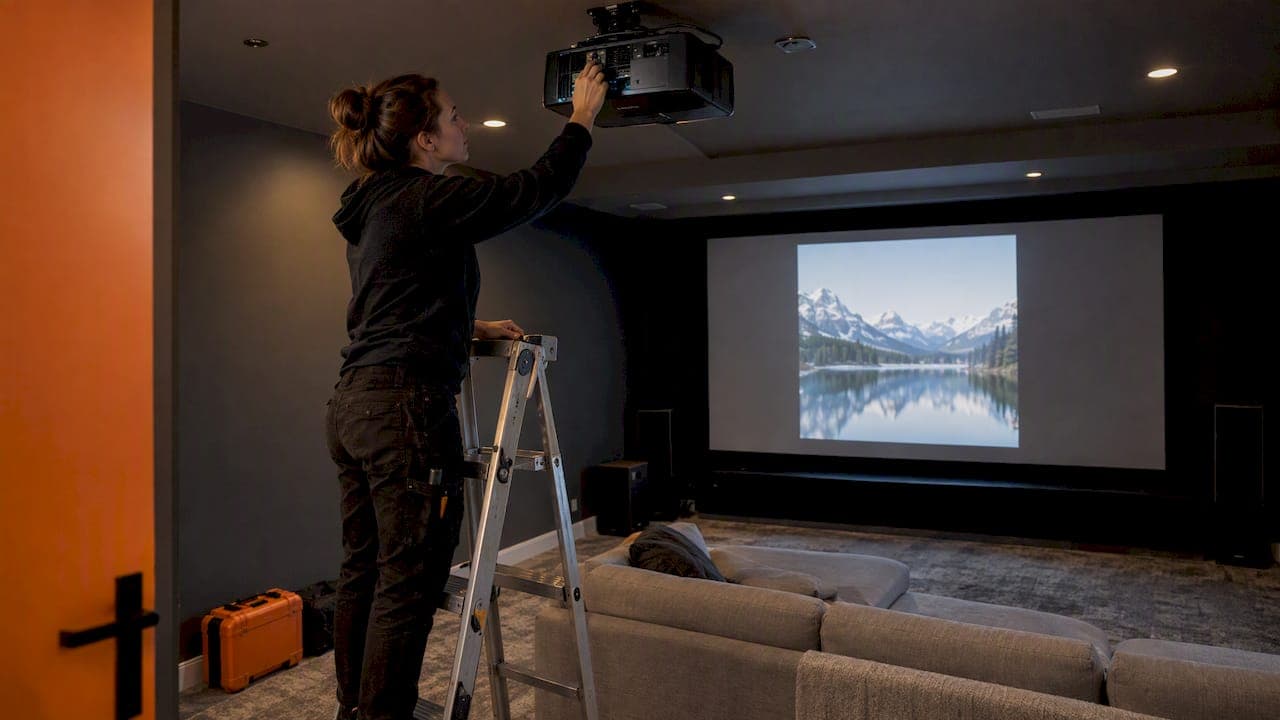
Lens shift moves the projected image up, down, left or right by sliding the lens inside the projector, so you can line the picture up with your screen without tilting or relocating the projector. Because the lens moves and the picture is not digitally altered, Epson explains that you keep a straight-edged image with uniform focus and no loss of resolution. For a Calgary basement theatre, a living room with a bulkhead, or a ceiling mount that landed a few inches off, it is often the feature that makes a clean install possible.
TL;DR
- Lens shift physically moves the lens, so the image shifts without keystone distortion or lost resolution.
- Vertical shift is usually generous. Horizontal shift is usually much smaller, so plan the projector's side-to-side position carefully.
- Ranges are quoted as a percentage of screen height (vertical) or width (horizontal). Check the manual before you drill.
- Use shift in the middle of its range when you can. Extreme settings can darken the corners.
- Keystone correction is a digital fix of last resort. Lens shift is the optical fix.
Table of Contents
- How lens shift works
- Vertical lens shift
- Horizontal lens shift
- How to check if a projector's shift fits your room
- Why you should not max out the shift
- Lens shift versus keystone correction
- Which projectors have lens shift
- How to set lens shift properly
- Common mistakes we see
- Planning a projector room with us
- Frequently asked questions
- Sources
How lens shift works
In a projector with no shift, the lens sits fixed and the image comes out at a set angle relative to the lens centre. Move the projector and the image moves with it. If you tilt it to hit the screen, the picture turns into a trapezoid.
A lens shift mechanism avoids that. According to Epson, it moves the lens vertically and/or horizontally within the projector to reposition the image. The projector body stays square to the screen, so the light still lands flat. You turn a dial, or use motorized controls on higher-end models, and the picture glides to where you want it.
The practical result is that the projector no longer has to be at the exact height or position the screen demands. That flexibility matters more than it sounds, because rooms rarely cooperate: joists, beams, pot lights, speakers and furniture all have opinions about where a projector can sit.
Vertical lens shift
Vertical lens shift moves the image up and down. It is the most commonly used form, since most projectors are mounted on a ceiling or placed on a shelf above or below the screen's centre line.
The range is typically expressed as a percentage of the total screen height, as Valerion's support documentation describes. A projector with a vertical range that includes, say, 50% above centre means the image can sit up to half a screen height above the lens centre line.
Here is a simple illustration with round numbers (not a specific model). A 100-inch 16:9 screen is about 49 inches tall. If a projector can shift the image up to 50% of the screen height, that is roughly 24.5 inches of movement. In a room with a ceiling-mounted projector and a screen centred lower on the wall, that margin is often the difference between a mount that works and one that needs to be redone.

Lens offset versus lens shift
These two terms get mixed up. Lens offset is the fixed position of the image relative to the lens. Lens shift is the adjustable part. ProjectorCentral describes shift as essentially letting you change the default offset within a range the manufacturer sets.
So a projector with no lens shift still has an offset: its image always appears at one fixed height above or below the lens. A projector with shift lets you move that default up or down within limits. If you are comparing models, it is worth knowing which one you are looking at, because a fixed offset dictates exactly where the projector must sit.
That is also why screen choice and projector position are decided together. If you are considering a screen built for rooms with some light, our friends' guide to ambient-light-rejecting screens is worth a look, since these screens are sensitive to projector angle and position as well as brightness.

Horizontal lens shift
Horizontal lens shift moves the image left and right. Epson's guide pairs it with vertical shift as the two axes of image position adjustment.
The catch is range. Horizontal limits are calculated as a percentage of the total screen width, and ProjectorCentral notes that this adjustment is often much smaller than the vertical one. Many projectors give you just enough to nudge the picture a bit, not enough to place the projector far off to one side.
In practice, that means:
- Horizontal shift is a fine-tuning tool. It forgives a mount that is slightly off-centre.
- It is not a licence to put the projector on a side wall shelf and shoot across at the screen.
- If your room forces an off-centre projector position, check the horizontal range before choosing a model.
How to check if a projector's shift fits your room
The method is straightforward. ProjectorCentral's approach is to find the offset at the top and bottom of the shift range, then see whether any position in that range lets you place the projector where you need it.
Here is how to do that in a real room.
- Decide the screen size and position. Measure the screen height and width, and note where its top edge and centre sit on the wall.
- Work out the throw distance. The lens-to-screen distance depends on the projector's lens and your screen size. We cover it in detail in our projector throw distance guide.
- Pick the mounting location. Note the projector's lens height and its left-right position relative to the screen centre.
- Convert to percentages. Divide the vertical gap between the lens centre and screen centre by the screen height. Do the same horizontally with the screen width.
- Compare with the specification. Both numbers must sit inside the manufacturer's stated range, and ideally not at the edge of it.
A useful side benefit, per ProjectorCentral: lens shift can let an installer be less precise with a ceiling mount, or reuse an existing mount without moving it. That is relevant when you are replacing an older projector in a room that is already finished.
Why you should not max out the shift
Lens shift is not unlimited, and the extremes are where trouble starts.
BenQ's user manual recommends using lens shift within vertical 50% and horizontal 20%, and warns that black corners may appear at the mechanical limits. Treat that as a model-specific example, and always read the manual for the projector you own or plan to buy.
There is a second subtlety. The two axes interact. ProjectorCentral explains that the combined adjustment area is not a simple rectangle: pushing one direction to its extreme can reduce how far you can go in the other. If you need both a big vertical shift and some horizontal shift, check the manufacturer's shift diagram instead of multiplying the two maximums together.
The rule of thumb we use: aim to land in the comfortable middle of the range on both axes. Keep the extremes in reserve for when the room demands them.
Lens shift versus keystone correction
These two features solve the same visible problem, a picture that does not fit the screen squarely, in very different ways.
| Lens shift | Keystone correction | |
|---|---|---|
| How it works | Physically moves the lens | Digitally reshapes the image |
| Image quality | No loss of image quality, per Epson | Scales pixels, which can soften detail |
| Resolution and brightness | Preserved | Can be reduced |
| Typical availability | Mid-range and premium models | Almost every projector |
| Best used | First choice for positioning | Last resort for small corrections |
Epson Australia's technical note describes lens shift as the superior answer to keystoning because it corrects optically instead of through digital scaling, which preserves resolution, brightness and light output.
Our view as installers: if you can get a square image with the projector parallel to the screen and lens shift, do that. Keep keystone off or at zero. If a projector has no lens shift and the mounting position is a compromise, the better fix is usually to move the mount, not to rely on heavy digital correction.
Which projectors have lens shift
Not all of them. Epson Australia notes that 3LCD projectors include lens shift across many price points, while single-chip DLP projectors rarely do, because of how the optical path is built and the cost it would add.
That does not make DLP a bad choice. It means you need to know what you are trading. If you are weighing technologies for a dedicated room, read our piece on DLP versus LCD projectors for what we test beyond brightness numbers. Lens shift availability is one factor among several, including contrast, colour, black levels and noise.
When reading a spec sheet, look for:
- Whether shift is manual or motorized.
- Vertical range and horizontal range, each as a percentage.
- Whether the range is for the standard lens or changes with zoom or an optional lens.
- Whether the manual shows a combined shift diagram.
How to set lens shift properly
Getting the shift right is a short job, but order matters. These steps draw on Epson's guidance and general good practice.
- Warm the projector up. For accurate settings and to avoid drift, let it run for 20 minutes before setting focus, zoom and lens shift, according to Epson.
- Square the projector first. Level it and aim it at the screen centre so it is parallel to the screen.
- Set the zoom so the image fills the screen width.
- Approach from below. Epson recommends putting the image lower than the target and then moving it upward, which reduces the chance of it settling downward after you finish.
- Fine-tune horizontal shift to centre the image.
- Focus last, across the whole image, since focus can shift slightly when the lens moves.
- Check the corners on a test pattern. If you see black corners, back off from the extreme.
If settings get nudged by accident, some models let you return the lens to its factory home position from the remote or menu. Canon's support page describes this for its projectors, and it is a handy way to start over.
Common mistakes we see
- Buying before measuring. Someone picks a projector based on brightness and price, then finds the mount point sits outside its shift range.
- Ignoring horizontal limits. The projector is mounted off to one side, assuming the shift will make up for it.
- Stacking keystone on top of shift. Using both leaves the image slightly soft for no reason.
- Pushing to the very edge. The image fits, but the corners are dark and the shift has no margin for the lens to settle.
- Adjusting a cold projector. The picture drifts after the first half hour of viewing.
Most of these are avoided by deciding the projector's position, screen size and model together before anything goes on the ceiling. Screen gain, ambient light and seating all feed into that decision too, and we go through it in our guide to projector screen gain.
Our perspective
In the rooms we design, lens shift is about protecting the architecture. A clean ceiling, a mount placed where the framing and wiring allow, and a picture that lands exactly on the screen: those only happen together when the projector has enough shift to forgive real-world construction.
That is why we plan the projector position, screen, cable runs and power before the drywall closes. Our installs are designed to disappear into the room, and a projector whose shift range matches the space lets us place it where it looks right and works right, without leaning on digital correction.
We also scale each system to the space. A basement theatre with a low ceiling and a great room with a vaulted one call for different projectors and different shift ranges. Choosing the right one up front is cheaper than fixing it after the walls are finished, and it keeps the picture sharp for years.
JupiterAV
Planning a projector room with us
If you are building or renovating in Calgary or the surrounding area, the best moment to settle projector position is before finishes go in. We offer immersive sound and cinema design, installation and service, along with low voltage wiring, so the mount point, cabling and screen are planned as one system, with a single point of contact.

Builders and homeowners can reach us through JupiterAV to talk through a dedicated theatre, a media room or a multipurpose space. If you are still deciding between a projector and a large display, our comparison of a projector versus a TV will help you weigh it up first.
Frequently asked questions
Is lens shift better than keystone correction?
For image quality, yes. Lens shift moves the lens optically, so Epson says there is no loss of image quality. Keystone correction reshapes the picture digitally and can soften detail. Use keystone only for small corrections you cannot avoid by repositioning the projector.
How much lens shift do I need?
It depends on where the projector sits relative to the screen. Measure the vertical and horizontal gaps between the lens centre and the screen centre, convert each to a percentage of screen height and width, and check both fall inside the manufacturer's range, preferably away from the limits.
Do all projectors have lens shift?
No. According to Epson Australia, many 3LCD models include it across various price points, while single-chip DLP projectors rarely do. Always check the specification sheet for the vertical and horizontal ranges before you buy.
Why do I see black corners after adjusting lens shift?
You have probably reached a mechanical limit of the lens travel. BenQ notes that black corners can appear there and recommends staying within its stated ranges for its model. Ease the shift back toward the centre, or reposition the projector slightly.
Can I use vertical and horizontal lens shift at the same time?
Yes, but the two interact. ProjectorCentral explains that the usable area is not a simple rectangle, and pushing one axis to its limit can reduce the other. Consult the shift diagram in the projector's manual.
Sources
- Projector Guide: Image Position Adjustment (Epson)
- Understanding Lens Offset and Lens Shift (ProjectorCentral)
- Lens offset versus lens shift (Valerion support)
- BenQ LU960 user manual
- Adjusting the Image Position Using Lens Shift (Epson)
- Lens Shift (Epson Australia)
- Adjusting the Image Position (Canon USA)
- Ambient-light-rejecting screens buying guide